
People and ownership
Bring people in, pause or remove them, and hand the organization on. Most of this is for an Org owner or Org admin. Transfer and delete are for the Org owner only.
Add people
Section titled “Add people”- Open Preferences → Teams and pick your organization.
- On Members, click + Invite to org.
- Type the email, choose Member or Admin, and click Invite.
The person gets an email that lasts 7 days. It shows under Invited until accepted; Cancel invite revokes it. To bring people onto a team, a Team lead uses Invite people. If your organization limits sign-in methods, the person must be able to sign in one of those ways.
Change a role
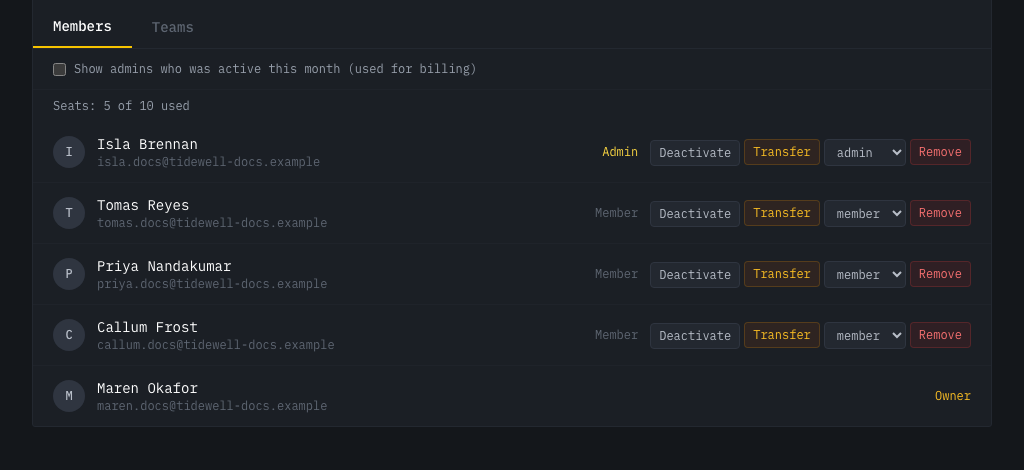
Section titled “Change a role”On the Members tab, use the role picker (Member or Admin). You cannot change the Org owner or yourself. To hand over the owner role, see below.
Remove or deactivate
Section titled “Remove or deactivate”| Action | What it does | Where |
|---|---|---|
| Remove from organization | Takes them out of the organization and all its teams and channels. What they wrote stays. | Preferences → Teams, row menu. Dashboard: Remove. |
| Deactivate | Pauses their access and frees a seat. They keep their data. They are told only that their access is paused. | Dashboard, Organizations, Members. |
| Reactivate | Gives access back. Refused when the plan has no free seat. | Same row. |
Deactivate asks you to confirm first. The Org owner cannot be removed or deactivated; transfer ownership first.
Paused automatically
Section titled “Paused automatically”A free cloud organization whose trial has ended keeps three people active: the Org owner and the two most recently active members. Everyone else is paused (shown as unavailable to them) until the plan changes. Nothing is deleted. Paying for a plan, or the owner’s choice to deactivate someone, frees or restores places.
People who leave Slack
Section titled “People who leave Slack”If your organization signs in with Slack, TeamHUD is told when someone is removed from the Slack workspace.
- Open Sign-in & Channels in the dashboard.
- Find Left the Slack workspace. Each person shows Still a member.
- Click Remove to take them out of the organization and its teams, or Keep to leave them in.
Removal keeps what they wrote. The Org owner shows “Organization owner: transfer ownership to remove them”.
To skip the review, tick Automatically remove people who leave our Slack workspace. It is off by default. They lose access at once and show as “Removed automatically”, with a Restore button.
Transfer ownership
Section titled “Transfer ownership”- Preferences → Teams → your organization → Members: open the
⋮menu on the new owner and choose Transfer ownership…. (Dashboard: Transfer on their row.) - Confirm. The message reads “They become the owner of your organization. You become an admin.”
Pick someone active: a paused or deactivated person cannot receive it. An organization always has exactly one Org owner. You cannot leave as owner until you transfer.
Delete the organization
Section titled “Delete the organization”Preferences → Teams → your organization → Settings → Danger zone → Delete organization, or the trash icon on the dashboard’s Organizations page. You type the organization’s name to confirm.