
Folders
A folder groups other hubs under one icon, so a crowded overlay stays tidy. Hover the folder to open a grid of the hubs inside.
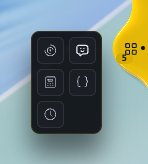
Use a folder
Section titled “Use a folder”Hover a hub in the grid to preview its panel. If you kept a hub’s panel open, hovering other hubs will not replace it. Click to move or release it.
A small speaker mark shows when a hub inside is playing audio. The count badge adds up unread items from the hubs inside.
Add hubs to a folder
Section titled “Add hubs to a folder”- Drag. Drag a hub onto the folder, then let go.
- Or use the menu. Right-click the folder and tick the hub under Hubs in this folder.
To take a hub back out, untick it in the same menu, or drag its icon out of the grid.
Configure a folder
Section titled “Configure a folder”Right-click the folder. The settings sit under Appearance & layout:
- Choose icon… changes the folder icon.
- Show count badge shows or hides the unread total.
- Hover delay (ms) sets how long you hover a hub in the grid before it opens. The default is 220.
- + New folder adds another folder.
- Delete this folder removes it.
On the Custom widgets setup step, a switch chooses In a folder or Separate hubs for widgets you add.