
User guide
What TeamHUD captures and who can see it
Everything that can capture your content or send it to another service, and what controls it.
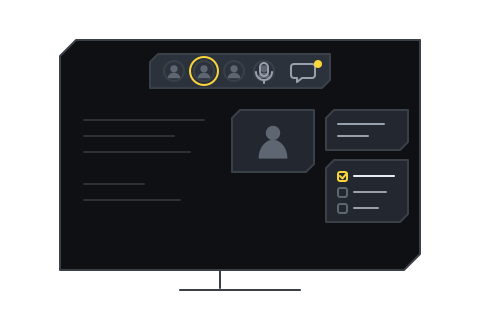
Anything that records people or hands their words to an AI model starts off. It turns on only after an Org owner or Org admin allows it and a person chooses it in the moment.
- Off recording, captions, AI chat and voice start off
- Org an Org owner or Org admin allows them
- You a person chooses it in the moment
- 2 exceptions: Window Focus and hosted shared transcription
At a glance
Section titled “At a glance”Who turns it on: Org means an Org owner or Org admin, in Preferences → Recording or the dashboard. You means you, in the moment.
In calls
Section titled “In calls”| Feature | Starts | Who turns it on | What you see while it is on | Where it lives | Who can read it | Turn it off |
|---|---|---|---|---|---|---|
| Call audio and video | Off until you join and unmute or turn the camera on | You | Your mic and camera state on your avatar | Streamed live to the call; not kept unless recorded | People in the call | Mute, turn the camera off, or leave |
| Screen share | Off | You | Stop sharing screen control; TeamHUD’s own windows stay out of the share | Streamed live to the call | People in the call | Stop sharing |
| Remote control | Off for every organization | Org, then the person sharing allows each request | A request card, then a chip saying who is controlling your screen | Nothing stored | The person controlling sees your shared screen | Stop, or the emergency keys |
| Recording (audio, video) | Off | Org allows, then someone starts it | REC chip; guests also get a consent card with a countdown | The TeamHUD server, under Recordings | Whoever the organization allows | A lead or starter chooses Turn off saving video and similar; you can leave |
| Captions and transcripts | Off | Org allows, then someone turns it on (or you, for yourself) | CC chip; CC <name> is transcribing their own speech | Live captions on screen; a kept transcript on the server only if kept transcripts are allowed | Call members for shared captions; a person’s own transcript stays theirs | CC to hide; Stop on your own row |
| Suggestions | Off | Org allows quest suggestions | Suggestions in the call | The server for a call that is transcribed | Call members | Turn off suggestions |
Outside calls
Section titled “Outside calls”| Feature | Starts | Who turns it on | What you see while it is on | Where it lives | Who can read it | Turn it off |
|---|---|---|---|---|---|---|
| AI chat | Off | You, in Preferences → AI Chat; some extras need Org to allow them first | The AI Chat hub; its badge shows when it is working | Saved as threads in AI chat; what you ask goes to the provider you chose | You and your chosen provider | Switch AI chat off |
| Voice commands | Off (How it listens: Off) | You | Your chosen listening mode | Speech turned to words on your computer by default | Only you | Set How it listens to Off |
| Voice history | Off | You | Cards say “kept” | Your computer only, never uploaded | Only you | Turn it off in the voice assistant settings (it can also be exported there) |
| Window Focus | On while the plugin is enabled | Not applicable | The Window Activity hub | Your computer only | Only you | Disable the plugin |
| Presence | On while you are signed in | Not applicable | Available, busy or offline on your avatar | Your TeamHUD server | Your teammates | Sign out |
| Messages | On when you send one | You | The message in the channel or DM | Your TeamHUD server | The people in that channel or DM | Do not send it |
Call audio and video travel to the call so that others can hear and see you. They are not kept unless someone records the call, and then everyone is told and asked. See Share your screen for what teammates can see of a share.
Remote control is off for every organization. The person being controlled is asked first, sees who is in control the whole time, and can end it at once.
Captions and shared transcription
Section titled “Captions and shared transcription”Captions, saved transcripts, audio, video and suggestions are all off for a new organization. An Org owner or Org admin chooses them in Turn on recording, AI and remote control. A person’s own transcript is theirs: admins cannot read it by default.
TeamHUD shared transcription makes word-by-word caption drafts on TeamHUD’s shared service, outside your organization’s own server. In the code:
- It needs the server to have a shared transcription host.
- On a self-hosted server it is off unless an Org owner or Org admin switches it on.
- On a TeamHUD-hosted server it can be on by default. This applies only to an organization that never chose, and only once that organization allows captions or transcription. A choice by the Org owner or Org admin always wins.
- The setting reads Use TeamHUD shared transcription for live captions in Preferences → Recording → Organization. When it is on by default, the pane says so.
If your organization allows no captions, nothing is transcribed and nothing is sent. Details: Calls and audio settings.
AI chat
Section titled “AI chat”AI chat is off until you choose Turn on AI chat. You then choose a provider: a command-line tool already on your computer (Claude local CLI or Cursor), or your own API key for Anthropic, OpenAI or Cursor. TeamHUD ships no model of its own, and keys stay on your computer.
What you type goes to the provider you chose. Three extras are off until you switch them on, and each also needs your Org owner or Org admin to allow it: Include teammates’ names and roles, Search the web without asking, and Let AI read Slack when I ask. Setup: AI chat and Connections.
Window Focus
Section titled “Window Focus”Window Focus records which app and window you are in, with idle time, in a database on your computer. Titles are stored even when Redact window titles hides them on screen. It does not use the server and nothing is uploaded. It has no on/off switch of its own: its plugin starts with TeamHUD, so to stop recording disable it in Plugin settings. You can see and revoke what it may do in Privacy and security settings.
Voice commands and voice history
Section titled “Voice commands and voice history”Voice assistant listens only when you set How it listens to something other than Off, and uses your microphone only. By default your speech becomes words on your computer. Keep my transcript is off, so your words drive an action and are then dropped.
The optional voice debug history keeps your last commands (your recording, what was heard, what it understood), 50 by default, on your computer only.
Presence and messages
Section titled “Presence and messages”Your teammates see whether you are available, busy or offline. Messages are stored on your TeamHUD server and are readable by the people in that channel or direct message. See Team chat and DMs.
Where to look and ask
Section titled “Where to look and ask”- To see what each plugin and widget may do: Privacy and security settings.
- To change what calls may capture, ask your Org owner or Org admin. They use Turn on recording, AI and remote control.
- Words used on this page are in the Glossary.