
Calls and audio settings
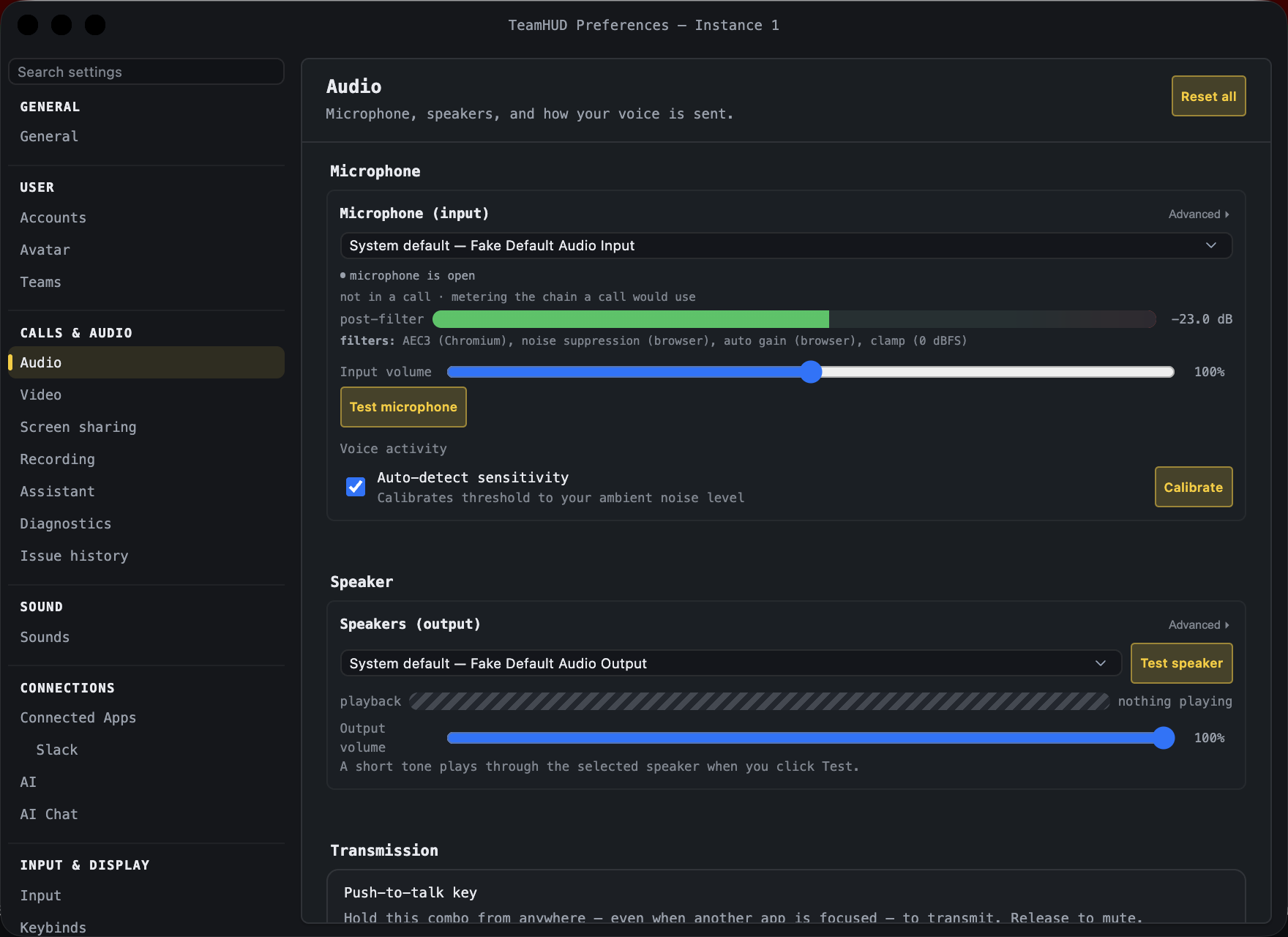
In the Preferences sidebar these pages sit in two groups: Voice & Video (Audio, Video, Screen sharing, Diagnostics, Issue history) and Recording & Assistant (Recording, Meeting assistant). (Rules is now the Suggestions section of Assistant.)
Most Audio rows show a small “where this value came from” marker with a per-setting reset; Reset all (top right) puts every audio setting back to its default and does not touch notification sounds (see Sound settings).
Microphone, speakers, and how your voice is sent. A microphone level meter follows you down the page. Some groups have a “Show … options” disclosure; those rows are marked (advanced).
Microphone and speakers
Section titled “Microphone and speakers”| Control | What it does | Default | Notes |
|---|---|---|---|
| Microphone permission / Grant access | Grants microphone access so device names appear in the lists. | Shown only when access is missing. | |
| Microphone (input) | Picks your microphone. | System default | |
| Input volume | Microphone gain, 0 to 200%. | 100% | Above 100% shows “Boost active - may cause clipping at high levels”. |
| Auto-detect sensitivity | Calibrates the voice-activity threshold to your room’s noise. | On | Description: “Calibrates threshold to your ambient noise level”. Calibrate measures it now. |
| Threshold | Manual voice-activity threshold, 0 to 50%. | 0.2% when auto | Shown when Auto-detect sensitivity is off. |
| Test microphone | Records and plays back a short test. | Becomes Cancel / Re-test. | |
| Speakers (output) | Picks your speakers. | System default | |
| Output volume | Playback volume, 0 to 100%. | 100% | |
| Test speaker | Plays a short tone through the selected speaker. | Without per-device routing support only the system default speaker can be used. |
Transmission
Section titled “Transmission”| Control | What it does | Default | Notes |
|---|---|---|---|
| Push-to-talk key | Hold this combo from anywhere, even when another app is focused, to transmit; release to mute. | Not set | Record captures the keys; Clear removes it. |
| Media engine (advanced) | Which process captures, encodes and sends your audio. | Chosen automatically for your computer | Options the machine cannot run are disabled. A summary above it shows what the current call actually negotiated. |
| Silence suppression (advanced) | Cuts bandwidth to near nothing while you are silent. May leave a short tail after speech on some connections. | On | Applies on your next call. |
Meeting detection
Section titled “Meeting detection”| Control | What it does | Default | Notes |
|---|---|---|---|
| Auto-mute when another meeting is detected | Mutes your TeamHUD mic while another app (Zoom, Meet, Slack…) is in a call. | On | |
| Auto-deafen when another meeting is detected | Also silences incoming TeamHUD audio while the other meeting runs. | On | Unmuting sticks; it will not fight you. |
Voice processing (all advanced)
Section titled “Voice processing (all advanced)”| Control | What it does | Default | Notes |
|---|---|---|---|
| Echo reduction | Filters echo when using speakers without headphones. | On | |
| Background noise removal | Reduces keyboard clicks, fans, and room noise. | On | |
| Microphone leveling | Keeps your volume consistent automatically. | On | A Fine-tune disclosure sets Target level (default 5 dB, 1 to 20), Maximum boost (50 dB, 0 to 60), Starting boost (15 dB, 0 to 40) and Speed (6 dB/s, 1 to 30); Reset these restores them. |
| Level balancing | Turns down loud peaks and lifts quiet speech after leveling. | On | Shows “Applied boost: +N dB” while on. A Fine-tune disclosure sets Target (default -16 dBFS, -35 to -10) and Maximum boost (0 to 36 dB). |
| Ignore steady background noise | Keeps fans, hum and other steady noise from being lifted as if it were speech. | On | Inside Level balancing’s Fine-tune. Turn off if quiet speech is not coming up. |
| Low-cut filter | Removes low rumble (fans, AC, desk bumps) below your voice. | Off | |
| Low-cut frequency | Cutoff, 20 to 200 Hz. | 85 Hz | Needs the low-cut filter on. |
| Voice isolation (AI) | AI filtering of in-band noise while you talk. | Off | Runs after Background noise removal; turn that off if the result sounds over-processed. |
| Noise gate | Mutes your mic when you are not talking. | Off | |
| Noise gate strength | How far above the room’s noise floor the gate opens. | 12 dB | Described as Gentle, Firm, Aggressive or Maximum as you raise it. Needs the noise gate on. Also has a number box. |
Processing changes apply on your next mic toggle.
Microphone privacy (advanced)
Section titled “Microphone privacy (advanced)”Muting stops anyone hearing you, but the microphone stays open and your system keeps showing its “in use” indicator. These options close it, at the cost of a beat to reopen on your next word.
| Control | What it does | Default | Notes |
|---|---|---|---|
| Close the microphone while muted | Releases the mic once you have been muted this long. | Off | |
| After muted for | How long to wait, 1 to 60 s. | 10 s | Needs the option above. |
| Close the microphone between push-to-talk presses | Releases the mic once you have genuinely stopped talking. | Off | |
| After no presses for | How long to wait, 5 to 180 s. | 45 s | Needs the option above. |
Your operating system still lists TeamHUD under recently used microphone apps; that history is kept by the OS.
Diagnostics
Section titled “Diagnostics”Device ids, live levels and telemetry moved to the Diagnostics page (below), so this page is only settings.
Choose your camera and its outbound quality for team calls.
| Control | What it does | Default | Notes |
|---|---|---|---|
| Camera permission / Grant camera access | Grants camera access so names and the preview can show. | Shown only when access is missing. | |
| Camera | Picks the camera. Changes apply on the next camera toggle. | System default | Refresh re-scans. A preview shows below. Disabled with “No camera detected on this machine.” On macOS 12-13, old-style virtual cameras (OBS before 30, Snap Camera) are not listed: macOS only lets TeamHUD load camera plug-ins signed by TeamHUD or Apple. OBS 30+ and macOS 14+ virtual cameras work. |
| Camera max outbound resolution | Caps the resolution your camera sends. Lower values save upload bandwidth. | 480p | Options: 60p, 120p, 240p, 360p, 480p, 720p, 1080p, 1440p, 4K / Full Resolution. Applies on the next camera toggle. |
Screen sharing
Section titled “Screen sharing”Choose what quality to share and how your screen follows your focus.
Quality
Section titled “Quality”| Control | What it does | Default | Notes |
|---|---|---|---|
| Maximum resolution | Caps the resolution your screenshare sends. | 1080p | Same options as the camera cap. Applies on the next screenshare. |
| Never share full resolution (advanced) | Turns down every full-resolution request automatically. Teammates always see the standard-quality stream. | Off | |
| While I share my screen (advanced) | Whether TeamHUD’s own windows can show in your share: Keep TeamHUD out of the share, or Hide the overlay. | Keep TeamHUD out of the share | Teammates never see your TeamHUD windows either way. Fixed at Hide the overlay (and greyed out) on a system that cannot exclude TeamHUD from a share. |
| Screen capture engine (advanced) | Which capture backend is used. | Automatic (Chromium) | Other choices depend on your operating system. |
| Picture-in-picture downgrade delay (advanced) | Drops to low resolution after this long when a teammate minimizes your share to picture-in-picture. | 60 s | Slider, 0 to 300 s. |
Follow my focus
Section titled “Follow my focus”Turn this on per share in the picker’s “Follow my focus” toggle. These settings apply to any share that follows you.
| Control | What it does | Default | Notes |
|---|---|---|---|
| Wait before following | How long a window must hold focus before the share moves to it. | 0 (no wait) | Slider up to 3 seconds. Raise it if you alt-tab through several windows. |
| Rules: Include / Exclude | Lists of apps or window titles. Include limits following to matches; Exclude never follows matches, even if Include would allow them. | Empty (any window may be followed) | Pick App name and/or Window title (blank means any), then Add rule. Chips remove a rule. Rules never affect a share you started by hand. |
Linux only
Section titled “Linux only”These appear only on Linux. Emergency stop shows the chord that stops remote control. Linux desktop integration has a Mode switch: Secure (your desktop asks before every share, the default) or Enhanced (TeamHUD can list all open windows, share any window without asking, and let people you approve control what you share; saving it asks for confirmation with Turn on Enhanced). Remote control (Wayland) has Remember this permission (off by default, so your desktop asks every time someone controls your screen) and Forget to clear a remembered remote-control permission.
Recording
Section titled “Recording”What calls may capture and what each team’s calls do. Everything is off until someone turns it on. Capture is gated by your organization’s policy: only an Org owner or Org admin can change the Organization section, and nothing is captured, transcribed or sent to AI unless that policy allows it and the people involved turn it on. Your own voice assistant is under Assistant. An Organization picker (top right) appears if you belong to several. Two sections: Organization, and Team (shown when you belong to a team).
Organization
Section titled “Organization”Members see only a one-sentence summary (“What calls may capture”). Org owners and Org admins see the controls below. Every policy flag defaults to off (not allowed).
| Control | What it does | Default | Notes |
|---|---|---|---|
| Start from a preset | Sets the switches below in one click: Off, Live captions, Captions & suggestions, Suggestions only, Full meeting record. | Off | Change any switch afterwards; the line below says “Custom, based on …” if it no longer matches. |
| What members see | A read-only summary of the policy, as everyone else in the organization reads it. | ||
| Captions (Live, during the call) | Live text under the call. Not kept by itself. | Off | |
| Allow captions on for everyone | A team lead can make captions show by default. | Off | Needs Captions. |
| Quest suggestions | “We should make a quest for…” offers a one-click quest. | Off | |
| AI details | Sends the line that triggered a suggestion, and the few before it, to the AI model. | Off | Needs Quest suggestions. |
| Transcript (Kept afterwards) | Searchable text of the call. | Off | |
| Audio (Kept afterwards) | Each person’s audio, for playback. | Off | |
| Video (Kept afterwards) | Camera and screens. | Off | Needs Audio. |
| Languages people speak | Which languages transcription expects. | None picked | Collapsible group of checkboxes; pick at least one. Word-by-word captions are English only. |
| Include teammates’ names and roles (AI chat) | AI chat may add them to what it sends to the AI model on team questions, only for people who also turn it on. | Off | |
| Allow web search (AI chat) | AI chat may send the search queries it writes to a search service. | Off | When on, each person still approves every search unless they choose otherwise. |
| Allow reading Slack messages (AI chat) | AI chat may read a Slack conversation a person asks it to catch them up on and send it to the AI model they chose. | Off | When on, each person must also turn it on and approves every use. |
Two more groups appear only in some setups. Improve transcripts appears once a DeepInfra key exists: When people may improve a transcript is Off (nothing is sent to DeepInfra) or After the meeting; choosing After the meeting shows Model (Qwen3-ASR 1.7B by default, or Whisper large-v3 turbo) and spending limits Most per recording ($) and Most per day ($). TeamHUD shared transcription appears only when the deployment has a TeamHUD shared host: one switch, “Use TeamHUD shared transcription for live captions”, plus Use first (TeamHUD shared transcription, or Your own server with shared as backup). It is off unless turned on, except that TeamHUD-hosted servers turn it on by default; the pane says so when it is.
A collapsed Engines and retention group sets Live captions (word by word or a sentence at a time), Transcript model (Most accurate Qwen3-ASR 1.7B, Cheaper Qwen3-ASR 0.6B, Fastest Whisper large-v3 turbo), Voice command transcripts, Wait for the remote service, After a slow response, Keep audio and video for (days) (0 to 365; 0 deletes saved media when the call ends; transcripts are kept). Everyone gets 30 seconds to answer the recording notice before being removed from the call; that is fixed, not a setting. Their defaults come from the server and are not listed here.
Pick a team if you have several. A Team lead or Org admin can change these; others see “A Team lead or an Org admin can change these.” Two blocks, Team call (the always-on room; everyone in it sees the CC/REC notice while this is on) and New meetings start with (whoever starts a meeting can change these for it).
| Control | What it does | Default | Notes |
|---|---|---|---|
| Live: Captions, On for everyone, Quest suggestions | What is on during the call. | Off | A box is unavailable if the organization policy does not allow it. |
| Kept: Transcript, Audio, Video | What is saved afterwards. | Off | Same limits. |
| Language | Which of the organization’s languages apply. | None |
Assistant
Section titled “Assistant”How the assistant listens to you, the phrases behind its suggestions, and what your organization allows. Everything is off until someone turns it on. Three sections: Just me, Suggestions, and Organization (shown only to Org owners and Org admins). An Organization picker appears if you belong to several.
Just me
Section titled “Just me”Stored on this device. Voice actions and dictation use your microphone only, for you only; others in a call see that you are.
| Control | What it does | Default | Notes |
|---|---|---|---|
| How it listens | Off, Hold <key>, Say the name, or Always. | Off | Limited to what the organization allows; a note explains if it is forced down. |
| Hold key | The key combo you hold from anywhere to speak a command, in every mode. | Option+Space | Shown when How it listens is not Off. Change records a new combo (it must differ from your push-to-talk key); Use Option+Space restores the default. |
| Where your speech becomes words | This computer, Server, or Automatic. | This computer | |
| Speech model on this computer | Built-in Moonshine tiny, or the larger Parakeet v2 (631 MB download kept on this computer). | Moonshine tiny - built in | Hidden when speech is set to Server. Cancel download appears while downloading. |
| Keep my transcript | Off: your words drive actions and are then dropped. On: kept as a file on this device, never on the server. | Off | |
| End with “execute” to skip the confirm | A command ending in “execute” or “engage” runs without asking. | Off | Needs the organization to allow it. Messages still get a short countdown. |
| Dictation start word | When dictating into a message during a call, only what starts with “message” goes in. | Only in calls | Choices: Only in calls, Always, Never. |
| Name | What you say before a command. | Blank (uses your organization’s name) | In the “Hearing the name” group, which opens by default only in Say the name mode. |
| Chime when it hears the name | Tells you it is listening for your command. | On | In the “Hearing the name” group. |
| Confirm the name before acting | Checks the name was really said before acting. Fewer false wakes, a little slower. | Off | |
| Listen for teammates’ names | Double-checks the teammate you name when you send a dart or invite someone; if what it hears disagrees you are asked who you meant. Runs on this computer only. | Off | |
| Sensitivity | Low, Normal or High. Higher hears you more easily but wakes by mistake more often. | Normal | |
| Pause before the name | None, Normal (0.5 s), Long (1 s), Longer (1.5 s). | Normal (0.5 s) | |
| Words it should expect | Names and jargon so they come out right. Add “Aoife = ee-fa” for a name spelled unlike it sounds. | Empty | Row: “Add a word”. |
| Teach it your voice (optional) | Say the name three times so the spotter tunes to how you say it, on this device only. | Not tuned | Start, then Take 2 of 3…; Reset clears it. Most voices do not need it. |
Below these, two sections added by the voice assistant (Responses and Understanding) also appear; they are described in Voice assistant settings.
Suggestions
Section titled “Suggestions”Phrases that turn what is said into a suggestion or a voice action, instantly and without AI.
| Control | What it does | Default | Notes |
|---|---|---|---|
| Team | Which team’s rules to show. | Your first team | Only if you have several teams. |
| Try a sentence | Type a sentence to see which rules match it and why the others do not. | Empty | Shows highlights per rule. |
| Rule lists | Rules grouped as Just me (this device), Team, Organization and Built-in (collapsed). | Built-in rules ship with TeamHUD | Remove deletes a rule you may edit; personal rules can be shared with Share… (copy or move to team or organization). |
| Add a rule: Name, Template, Applies to | Creates a rule. Template syntax: (a|b) one of, [a] optional, {topic} {task} the subject, {person} someone on the call, {day} today, Friday… |
Applies to: Just me, this team | Choices include Just me (team / organization / all my orgs), the team (Team leads and Org admins only), and the organization (Org owners and Org admins only). Add saves it. |
| Build template with AI | Writes a template from your sentence using your local AI chat model. | Shown only if a local model is available; the result is checked against your sentence. | |
| Live from your team’s call | Each transcribed sentence with the rule it triggered. | Kept in memory only. |
A note says when Quest suggestions are off for the organization (“Recording → Live, during the call”); personal rules still work for your own voice actions.
Organization
Section titled “Organization”Shown only to Org owners and Org admins.
| Control | What it does | Default | Notes |
|---|---|---|---|
| People may transcribe their own voice | Only their microphone, only for them, in or out of calls. Others in a call see that they are. | Not allowed | Choices: Not allowed, Hotkey only, Say the name, Continuous. |
| Assistant name | Said before a voice action: “Hudson, make a quest for…”. | Personal (Just me); the default is Hudson | Long and rare works best. A Test the name step (say it three times) appears in the desktop app. |
| Allow “execute” to skip the confirm | A command ending in “execute” runs without asking, for people who also turn it on. | Off | Messages still get a short countdown. |
Diagnostics
Section titled “Diagnostics”Live call health: verdicts, audio path, metrics and WebRTC tracks. These are mostly read-only readouts.
| Control | What it does | Default | Notes |
|---|---|---|---|
| Status | Verdicts on how the call is doing. | ||
| Devices & levels | The devices in use, plus live input/output levels (“Measure input and output levels”; opens the microphone only after you start it). | Off | The device list is included in the support copy. |
| Effective settings | Every audio setting’s current value and where it came from, with live warp/concealment detail. | Replaces the old Audio Lab. | |
| Issues (Detected audio issues) | Preview of the newest detected audio issues. | Expanded when there are issues | Full list on Issue history. |
| Audio path, Capture signals, Metrics, WebRTC tracks | Readouts shown while a call is running. | ||
| Test your network | Checks, step by step, whether this network lets calls connect. Sends no call content, only connection probes. | ||
| Copy details for support | Copies verdicts, transport, per-track metrics and recent history. | Button Copy. | |
| Download diagnostics | Last 5 minutes of call state and signaling, as JSON. | Two buttons: yours, or Download team diagnostics, which asks every online teammate, including anyone not in the call. | |
| Detailed call diagnostics (uses more memory) | Keeps per-stream network counters for your own downloads and saved reports (still the last 5 minutes). Metrics only; never shared with teammates. | Off | Checkbox On. |
Issue history
Section titled “Issue history”Pane heading “Audio issue history”. Every audio issue detected this session. Resolved ones are kept until you clear them.
| Control | What it does | Default | Notes |
|---|---|---|---|
| Active now, then day groups | Lists current issues first, then resolved ones by day. | Empty (“No audio issues detected.”) | Each issue can be cleared individually. |
| Clear resolved (n) | Removes the resolved issues. | Shown when any exist. | |
| Clear all | Removes every issue. |