
User settings
These pages sit under Account (person icon) in the Preferences sidebar.
Accounts
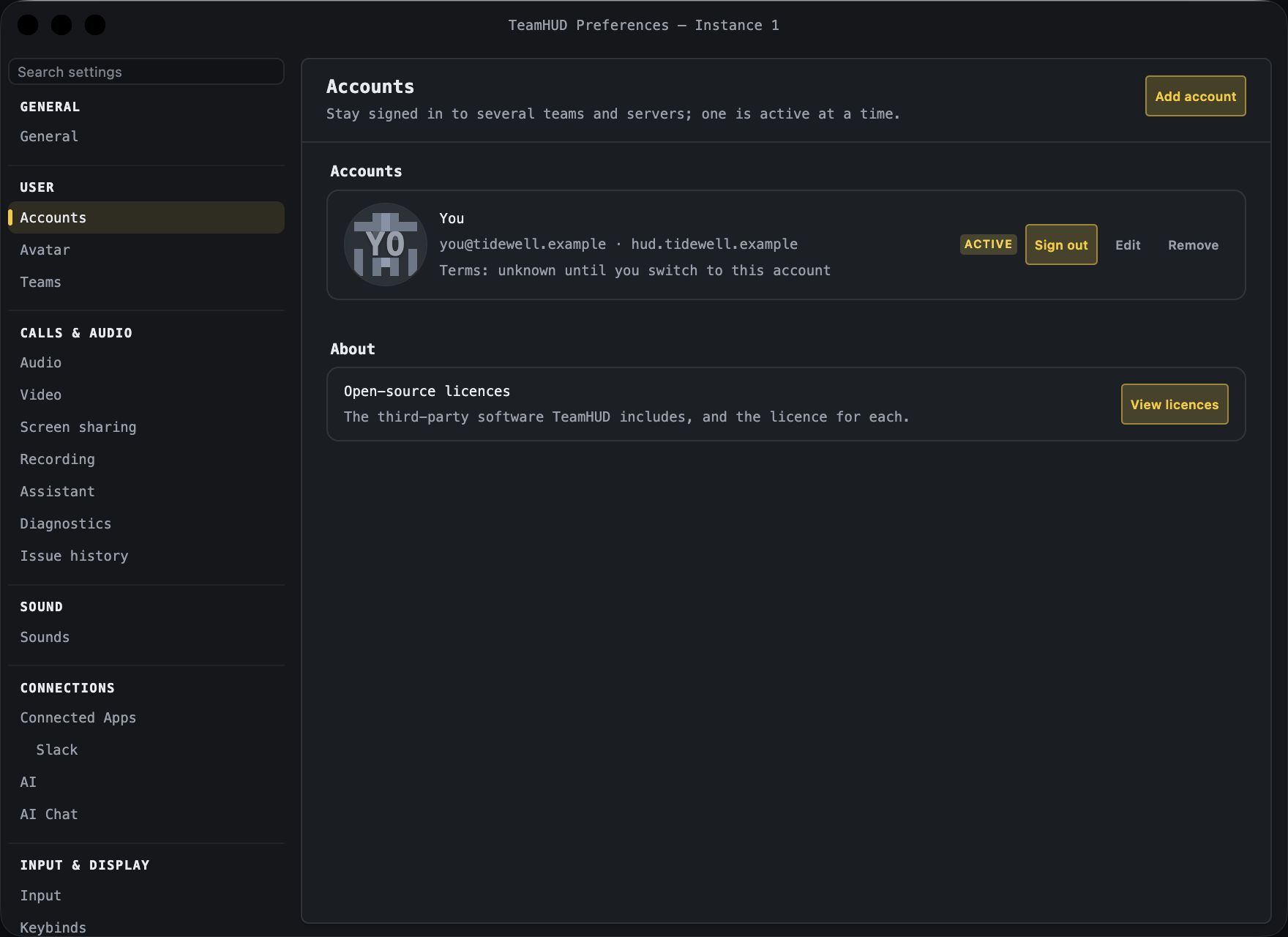
Section titled “Accounts”Stay signed in to several teams and servers; one is active at a time. The page shows only the sections that apply: when you are signed out you see Server and Sign in; once signed in you see your account list.
Accounts list
Section titled “Accounts list”Every account on this computer, active one first. An Add account button sits at the top right of the page.
| Control | What it does | Default | Notes |
|---|---|---|---|
| Sign out (active account) | Signs the active account out. | The active row shows an “Active” badge. | |
| Switch (other accounts) | Makes that account the active one. | Shows “Sign in again” with a “Signed out” badge if that account’s session is gone. | |
| Edit | Opens a dialog with Server address, Email and Password for that account, with Test sign-in. | Saving signs the account in again. A sign-in never carries over to another server. | |
| Remove | Removes the account from this computer. | ||
| Add account | Reveals Server and Sign in so you can add another account. | Becomes Cancel while adding. |
A red “Session invalid” banner appears if the server rejects your session; sign out and back in to clear it. A “New Terms to accept” banner appears when the Terms and Privacy policy changes, with a Review & accept button.
A “Verify your email” banner appears after you create an account: it says a link was sent, that your 14-day Pro trial starts when you open it, and has Send a new link.
Sign-in methods
Section titled “Sign-in methods”Shown when signed in (not while adding an account).
| Control | What it does | Default | Notes |
|---|---|---|---|
| Slack: Connect Slack sign-in / Disconnect | Keeps a way into this account if you leave your Slack workspace. | Not connected | Disconnect is disabled when Slack is the only way into the account. |
Server
Section titled “Server”Shown when signed out, or while adding an account.
| Control | What it does | Default | Notes |
|---|---|---|---|
| Environment | Chooses the server: Production, Development, or Custom…. | The server the app is currently using | Choosing Custom shows an address box. |
| Custom address | The address of your own TeamHUD server. | Empty | Must be https; http://localhost:3001 works for a local server. |
| Use this server / Add this account (button: Save URL / Continue) | Saves the server. While adding an account, continues to sign-in. | Disabled until the address changed. |
Sign in / Create account
Section titled “Sign in / Create account”| Control | What it does | Default | Notes |
|---|---|---|---|
| Your account email. | Empty | ||
| Password | Your password. | Empty | When creating an account the hint reads “At least 8 characters”. |
| Display name (optional) | The name teammates see. | Empty | Only when creating an account. |
| Sign in / Create account | Submits the form. | While adding an account, use Continue in the Server section instead. | |
| Need an account? Sign up / Have an account? Sign in | Switches between the two forms. | Sign in | |
| Forgot password? | Emails a reset link to the address you typed. | Sign-in form only. Save the server address first. The message is the same whether or not the address is registered. |
Licence
Section titled “Licence”Shown on self-hosted servers whose signed licence names who it was issued to.
| Control | What it does | Default | Notes |
|---|---|---|---|
| Licensed to | Shows the licence holder, with the kind (Offline licence, Free or Paid). | Read-only. |
Shown when signed in and your server reports a plan. Names your plan and shows a status line (renewal date, trial end, or “Payment failed: update your card to avoid interruption”).
| Control | What it does | Default | Notes |
|---|---|---|---|
| Manage billing | Opens the billing portal in your browser. | Paid plans. Stripe handles payment. | |
| Self-host licence | Opens checkout for a self-host licence in your browser. | Unpaid plans. | |
| Upgrade | Opens checkout in your browser. | Unpaid plans. |
Your organizations
Section titled “Your organizations”Shown to an Org owner. One row per organization you own, with its plan badge. Plans & billing opens that organization’s billing page in your browser; on a self-host plan the row says to manage the plan on your server’s licence page. Billing is per organization, never per account.
| Control | What it does | Default | Notes |
|---|---|---|---|
| View licences | Opens the window listing the open-source software TeamHUD includes and each licence. | Row label: “Open-source licences”. |
Avatar
Section titled “Avatar”How you appear to teammates. Changes apply to the signed-in account only. Signed out, the page asks you to sign in.
Your face
Section titled “Your face”A card showing what teammates currently see (your animated avatar, your photo, or the generated default). Its title reads “Not saved” while you have unsaved edits.
| Control | What it does | Default | Notes |
|---|---|---|---|
| Save | Saves your face edits. | Disabled until you change something. | |
| Reset | Discards unsaved edits. | ||
| Upload photo… | Picks a photo, then lets you drag to position it, set Zoom, and confirm with Use this photo (or Cancel). | Save afterwards to apply it. | |
| Remove animated avatar | Drops your animated avatar. | Disabled when you have none. | |
| Remove uploaded avatar | Drops your uploaded photo. | Disabled when you have none. |
Animated avatar
Section titled “Animated avatar”The picker for building your animated avatar. If more than one avatar style is installed, a style dropdown appears above it.
What you see
Section titled “What you see”These only change what you see, not what teammates see of you.
| Control | What it does | Default | Notes |
|---|---|---|---|
| Animated avatars | Off shows everyone’s uploaded photo instead. | On | |
| Motion | Full, Reduced or Off. Reduced keeps talking and blinking but stops the sway; Off holds faces still. | Full | Your system’s reduce-motion setting still applies. |
| Teammates shown as still | Lists teammates whose avatar you have frozen; remove a chip to animate them again. | Nobody | Chips show the start of the person’s user id. |
| Mouth sensitivity (under Fine-tune) | How quiet your voice can be and still move your mouth. | Auto | Raise it if your mouth stays shut; lower it if it moves at room noise. Shows your live level while you are in a call or on the Audio tab. |
| Auto (button) | Returns Mouth sensitivity to automatic. | Disabled when already automatic. |
Your organizations, teams, and who is in them. A left rail lists each organization with its teams (your role shows as Lead, Member or Not a member), plus + New organization, Archived teams, and + New team under each organization you may add to.
Pick a team in the rail. The header has Make active (or an “Active team” chip, with an x to clear it); the active team’s call is the one the team hub joins. Two tabs: Members and Settings.
| Control | What it does | Default | Notes |
|---|---|---|---|
| Members: search | Filters members by name or email. | Appears only with a larger member list. | |
| Members: + Invite / Close | Opens the invite panel. | Team leads only. | |
| Members: role dropdown, Remove from team, Leave team | Change a member’s role, remove them, or leave. | Team leads manage others; you cannot edit yourself or the last lead. | |
| Settings: Team name | Renames the team. | Current name | Team leads only; others see “Only team leads can rename this team.” |
| Settings: Description | Describes the team. | Empty (“What is this team about?”) | Team leads only. |
| Settings: Save | Saves name and description. | ||
| Danger zone: Leave team | Leaves the team. | If you are the only lead, another member is promoted. | |
| Danger zone: Archive team | Hides the team from everyone (widgets, switcher, quests) but keeps it. | Team leads only; you type the team name to confirm. Restore from Archived teams. |
Organization
Section titled “Organization”Pick an organization in the rail. Same two tabs.
| Control | What it does | Default | Notes |
|---|---|---|---|
| Members: + Invite to org | Invites by email with a role (Member or Org admin). | Member | Org owners and Org admins only. |
| Members: role dropdown, Transfer ownership…, Remove from organization, Leave organization | Manage members. | The Org owner cannot be edited. | |
| Settings: Organization name | Renames the organization. | Current name | Org owners and Org admins only. |
| Danger zone: Leave organization | Leaves the organization. | Disabled for the Org owner, who must transfer ownership first. | |
| Danger zone: Delete organization | Permanently deletes the organization and all its teams, channels, calls and messages. | Org owner only; you type the name to confirm. Cannot be undone. |