
Join the team voice call
Join your team’s voice call from your own avatar on the overlay, then mute, talk by key, deafen or leave. Your teammates hear you only once you are in the call.
Before you start: you are signed in and have an active team. If Join voice is greyed out, hover it: the tooltip says Sign in from Preferences → Account, Pick an active team in Preferences → Teams, or Create a team in Preferences → Teams.
Join the call
Section titled “Join the call”- Open your panel. Click your own avatar on the overlay.
- Join. Click Join voice. The button changes to Cancel while it connects.
- Check the controls. Once you are in, your panel shows a microphone button, a deafen button, camera and screen buttons, and Leave call.
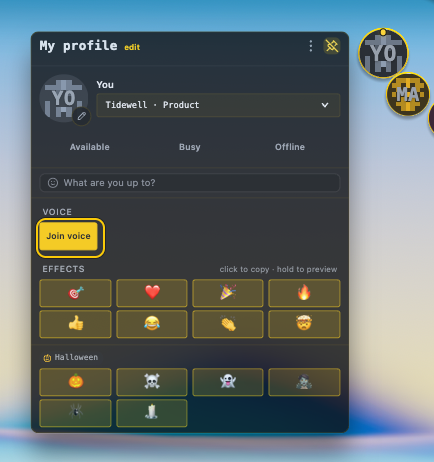
What you’ll see: the call controls replace Join voice, and your avatar appears in the call for your teammates.
If Cancel stays on screen the connection is stuck. Click Cancel, then Join voice again.
Mute and unmute
Section titled “Mute and unmute”Click the microphone button to mute or unmute (its tooltip reads Mute or Unmute). Or use the shortcut from any app:
CmdOptionShiftMmacOSCtrlAltShiftMWindows, Linux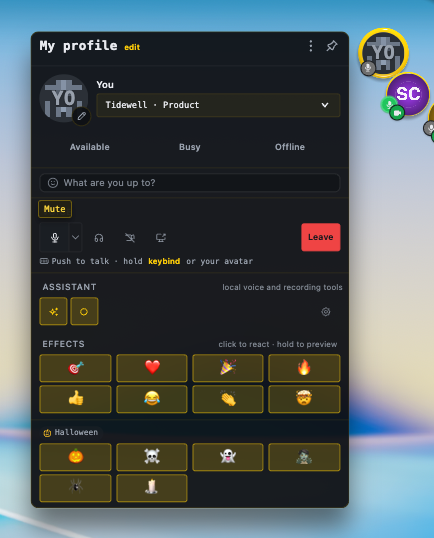
If a moderator muted you for everyone, an Unmute myself button appears next to Leave call.
If another app’s call is active, the microphone shows Muted — external call active (click to override). Click it to unmute anyway.
Choose push-to-talk or voice activity
Section titled “Choose push-to-talk or voice activity”- Open mic options. Click the small arrow on the microphone button (tooltip Mic options).
- Pick an input mode. Under Input mode, choose Push to talk or Voice activity.
- Set the key. For push-to-talk, choose Keybinds…, or open Preferences → Calls & Audio → Transmission, click Record next to Push-to-talk key and press your combination.
The mode starts as push-to-talk, and no key is set until you record one. Hold the key, even with another app focused, to transmit; release to go quiet. Clear removes the key. Your choice is remembered. You can also pick Input device in the same menu.
Deafen
Section titled “Deafen”Click the headphones button (Deafen) to stop hearing the call. Deafening also mutes you. Undeafen brings back your hearing, and your microphone returns to how it was, unless you had muted it yourself first.
Click Leave call in your panel.
Start a meeting window instead
Section titled “Start a meeting window instead”For a separate window with guest links, use New meeting in the tray menu or the hub right-click menu. See Run a meeting. teamhud:// links open inside TeamHUD, not your browser.
If it goes wrong
Section titled “If it goes wrong”- No one hears you. Check you are not muted or in push-to-talk without holding the key. The microphone button shows the state.
- Wrong microphone or speaker. Open the mic options menu and choose Input device, or set both in Preferences → Calls & Audio.
- Join keeps failing. Pick Cancel, check your team in Preferences → Teams, and try again.