
What you can say
You can say these to the voice assistant. Each feature supplies its own commands, so this list is every command the built-in features register. Say help to see the same list on your screen.
Before you start: voice is on (see Turn it on). The default name is Hudson (you can change it in Preferences). If you chose Say “Hudson”, start each command with the name. With Hold, just talk while you hold the key.
How confirmation works
Section titled “How confirmation works”The last column in every table below uses one of three answers:
- Runs at once. Nothing to confirm.
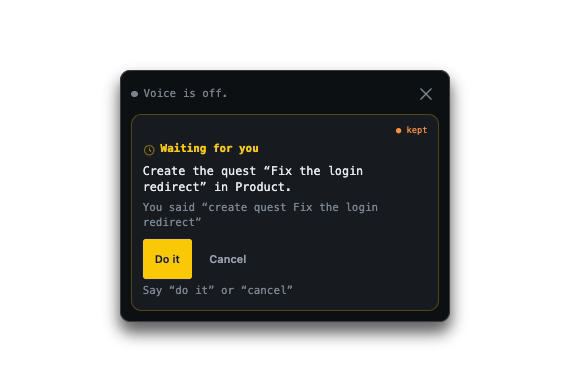
- Asks first. A card appears; say “do it” or “cancel”. See Cards.
- Asks first (message). The words go to other people, so the card always appears. Ending a command with “execute” only turns the card into a countdown, and only if you and your organization allow it.
Anything you can say a few ways also takes a lead-in such as “go ahead and” or “let me”. Examples below show one wording; others work.
Quest Log
Section titled “Quest Log”| Say | What it does | Confirm |
|---|---|---|
| “create a quest to fix the login redirect” | Creates a quest for your active team. Also “add a bug …”, “log a feature request …”, “remind me to …”, “note to self …”, “track … as a task”, “add … to the quest log”. You can add a team, a due day and a priority anywhere in the sentence. | Asks first |
| “do we have a quest about transcription” | Looks for quests on that topic and answers aloud. Also “find a task called …”. | Runs at once |
| “open a new quest …” or “new quest” | Opens the new-quest form, filled in with what you said. You press save. | Runs at once |
| “open the quest log” | Shows the quest log. | Runs at once |
“Undo that” after creating a quest deletes it, and asks first. See Quest log.
Messages
Section titled “Messages”| Say | What it does | Confirm |
|---|---|---|
| “tell the team the build is green” | Posts the message to your team chat. Also “let everyone know …”, “post in the team channel saying …”. | Asks first (message) |
| “open the chat” | Opens team chat. | Runs at once |
| “draft thanks for the review” | Opens team chat with that text in the box. You press send. | Runs at once |
See Team chat and DMs.
AI Chat
Section titled “AI Chat”| Say | What it does | Confirm |
|---|---|---|
| “ask the AI about the release notes” | Opens AI chat with the question typed in the box. It is not sent until you send it. | Runs at once |
| “new AI chat” | Opens a new AI chat. | Runs at once |
See AI chat.
| Say | What it does | Confirm |
|---|---|---|
| “mute” or “unmute” | Toggles your microphone. “Undo that” toggles it back. | Runs at once |
| “share my screen” | Starts sharing your whole screen. | Runs at once |
| “share Notion” | Shares only that app’s window. | Runs at once |
| “join the meeting” | Opens the team meeting. | Runs at once |
| “call Dana” | Calls that person into the team call. | Asks first |
Presence
Section titled “Presence”| Say | What it does | Confirm |
|---|---|---|
| “I’m back” | Sets your status to Online. | Runs at once |
| “I’m busy”, “do not disturb”, “brb” | Sets your status to Busy. There is no separate “away”; away is Busy. | Runs at once |
| “go offline” | Sets your status to Offline. | Runs at once |
Resources
Section titled “Resources”| Say | What it does | Confirm |
|---|---|---|
| “open the roadmap” | Opens the resource with that name. Say “the”, “my” or “our” before the name. | Runs at once |
See Resources.
Windows and web
Section titled “Windows and web”| Say | What it does | Confirm |
|---|---|---|
| “switch to my terminal” | Brings that app’s window to the front. | Runs at once |
| “pull up the design doc” | Finds a window or tab by name. If nothing matches, it searches the web. | Runs at once |
| “search the web for …” | Searches the web. This is the one command that leaves your computer, so name the web: a plain “search for” looks for a window first. | Runs at once |
Emotes
Section titled “Emotes”| Say | What it does | Confirm |
|---|---|---|
| “throw a dart at Dana” | Sends that effect to a teammate. Also “send Sam confetti”. It only runs if the effect is one TeamHUD can play. | Runs at once |
If it goes wrong
Section titled “If it goes wrong”- Nothing happens. Check How it listens in Preferences, Assistant, and that your organization allows it.
- It opened the wrong thing. “Open” commands are tried in order: meeting, chat, new quest, then resources. Say “the chat” or “the quest log” in full.
- A command is not on this list. Features add their own. Say help for yours.