
Share your screen
Share your screen or one window with your team during a call, and stop whenever you like. TeamHUD’s own windows are kept out of what teammates see.
Before you start: you are in a team call (see Join the team voice call). On macOS, allow screen recording for TeamHUD in system settings the first time.
Start sharing
Section titled “Start sharing”- Open the share control. In your call panel, click the screen button (Share screen).
- Choose what to share. In Choose what to share, pick your whole screen or a window.
- Confirm. Your teammates see it live.
If a teammate asks you to share, a card says <name> has requested you share your screen with Share and Decline. Nothing is shared until you click Share.
What you’ll see: the button now reads Stop sharing screen, and a notification says You’re sharing your screen with Press Stop to end it.
Stop sharing
Section titled “Stop sharing”Click Stop sharing screen, or Stop on the notification. If teammates have asked for a sharper picture, open the viewers list: Stop sharing ends the share, while Stop full res only stops the extra full-resolution upload. They keep seeing your screen at standard quality.
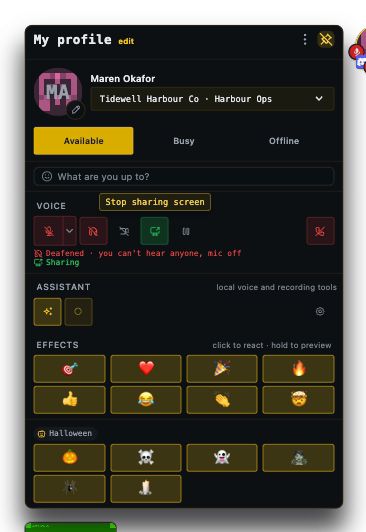
What a whole-screen share shows
Section titled “What a whole-screen share shows”When you share, TeamHUD’s windows are excluded from what teammates see. Your overlay, hubs and Preferences do not appear, even if you share your entire screen. The wallpaper layer and drawing-mode marks you draw for the audience stay visible. While you share, TeamHUD is also left out of your own screenshots and recordings.
You can change this in Preferences → Calls & Audio → Screen sharing, under While I share my screen:
- Keep TeamHUD out of the share is the default on macOS and on Windows 10 (2004 or later).
- Hide the overlay hides the overlay while you share. It is the only choice on Linux and older Windows, which cannot exclude windows from a capture.
If it goes wrong
Section titled “If it goes wrong”- Nothing happens on macOS. Allow screen recording for TeamHUD in system settings, then try again.
- You need to take back a share someone is controlling. See Remote control.
- Teammates still see the overlay. Check While I share my screen in Preferences → Calls & Audio → Screen sharing.