
Remote control
Remote control lets a teammate use your keyboard and mouse on the screen you are sharing, or lets you use theirs. It is always asked for, always visible, and you can end it at once.
Before you start: the person sharing is in a call and sharing their screen, and your team’s policy allows remote control. It is off until an Org owner or Org admin turns it on.
Ask to control a teammate’s screen
Section titled “Ask to control a teammate’s screen”- Open their share. Open the teammate’s screen share at full resolution.
- Request control. Click Request control in the viewer toolbar.
- Wait. The button reads Waiting for permission… for up to 30 seconds.
What you’ll see: when they allow it, the button becomes Stop controlling. Click it to give control back.
If they say no, you see Control refused: they said no, and you can ask again after about 10 seconds. If they do not answer: they did not answer.
Allow or deny a request (the person sharing)
Section titled “Allow or deny a request (the person sharing)”- Read the card. It says <name> wants to control your screen – your keyboard and mouse.
- Choose. Click Deny, or Allow. Allow… is disabled for a moment after the card appears or moves, so you cannot click it by accident.
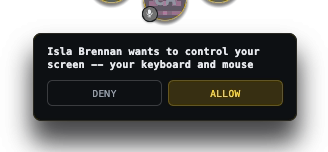
Ignoring the card for 30 seconds counts as a no.
While you are being controlled
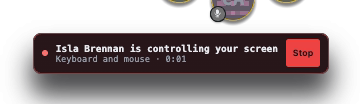
Section titled “While you are being controlled”A banner shows <name> is controlling your screen, the mode (Keyboard and mouse or Side by side), and how long it has run. A system notification says the same. Control ends by itself after 30 minutes, or after a minute with no input.
Stop it
Section titled “Stop it”- Click Stop on the banner or the notification.
- Emergency stop: works even if the other person is typing.
Press Esc three times quickly (within half a second). It works whichever app has focus.
Press Esc three times quickly (within half a second). It works whichever app has focus.
Press this shortcut once:
CtrlAltShiftBackSpaceIt is a desktop-level shortcut. On KDE Plasma it is set up for you. On GNOME 48 and later your desktop asks you to approve it. On Hyprland and COSMIC, add one line to your config; Preferences → Calls & Audio → Screen sharing → Emergency stop shows the exact line with a Copy button. Triple Esc also works for X11 apps.
If it is refused
Section titled “If it is refused”The reason appears after Control refused: on the requester’s button.
| You see | Meaning |
|---|---|
| their team’s policy does not allow remote control | An Org owner or Org admin has not allowed it. |
| their computer has not given TeamHUD permission to control it | On macOS, allow TeamHUD under Accessibility in system settings. |
| their screen is already being controlled | Someone else is in control. |
| their kind of screen share cannot be controlled | Control is not offered on that kind of share. |
| you are not viewing their screen in full resolution | Open the share at full resolution first. |
If control stops while you are using it, the button shows why, for example another window is covering the shared window.
On Linux with a Wayland desktop, a Preferences option Remember this permission keeps your desktop from asking each time.