
Run a meeting
As a Team lead or host you start a meeting in its own window, ring teammates, share a link for guests, and decide who gets in.
Before you start: you are signed in. If you are in your team’s voice call, TeamHUD asks whether to leave it first.
Start a meeting
Section titled “Start a meeting”- Start it. Choose New meeting from the tray menu, or right-click your team hub and choose New meeting.
- Confirm leaving the call, if asked.
- The meeting window opens and you are its host.
Ring teammates
Section titled “Ring teammates”- Open Participants. Click Participants on the bottom bar.
- Find the Team list. It shows teammates who are not in the meeting yet.
- Click + Add next to a name. The button reads Inviting… and then Invited.
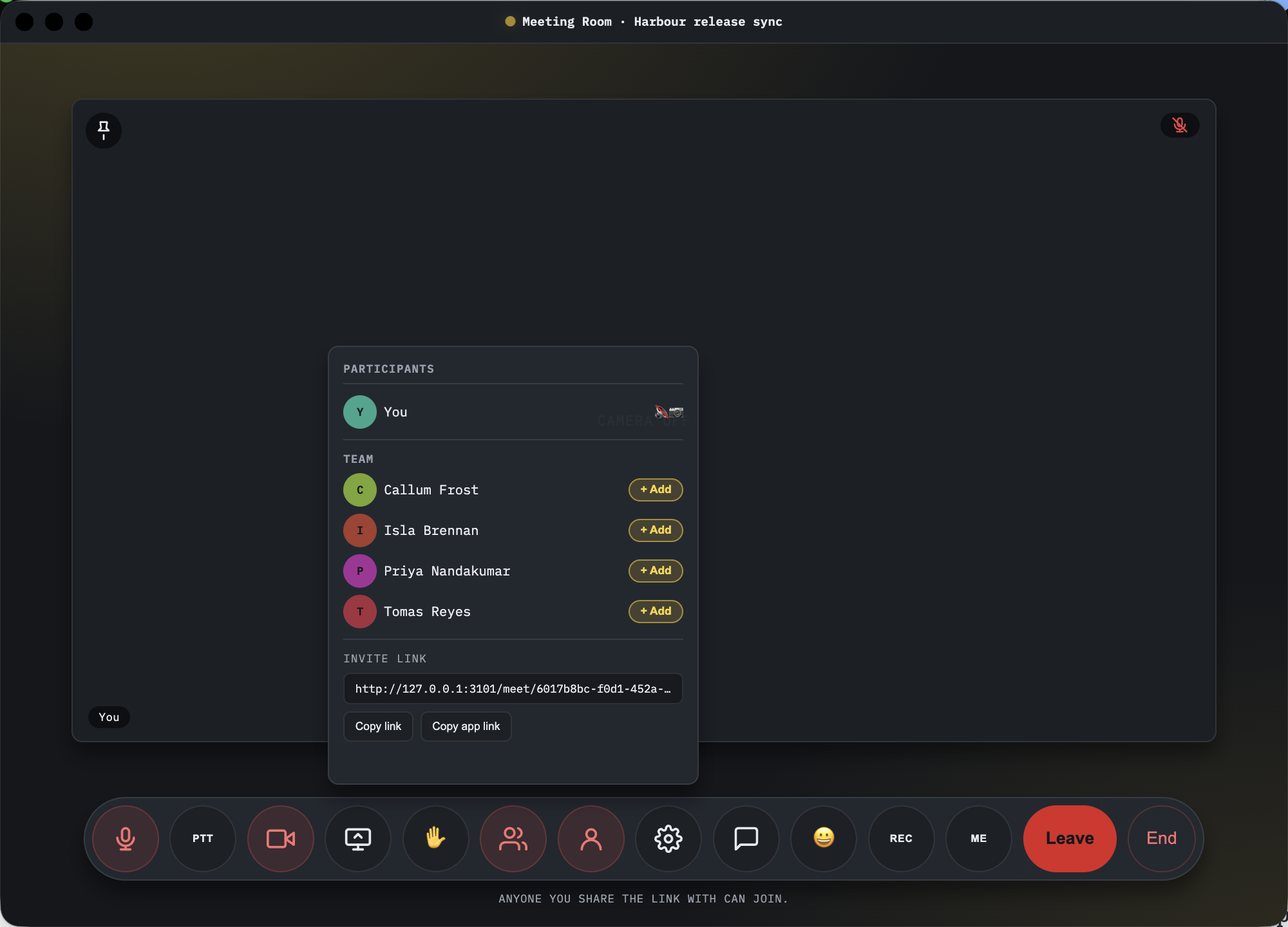
If it fails you see Invite failed. Click + Add again to ring them again.
Share the guest link
Section titled “Share the guest link”In the Participants panel, find Invite link. Click Copy link to copy the web link for guests, who need only a browser (see Join a meeting as a guest). Copy app link copies a link that opens TeamHUD for people who have it.
Send the passcode separately if you set one.
Let people in
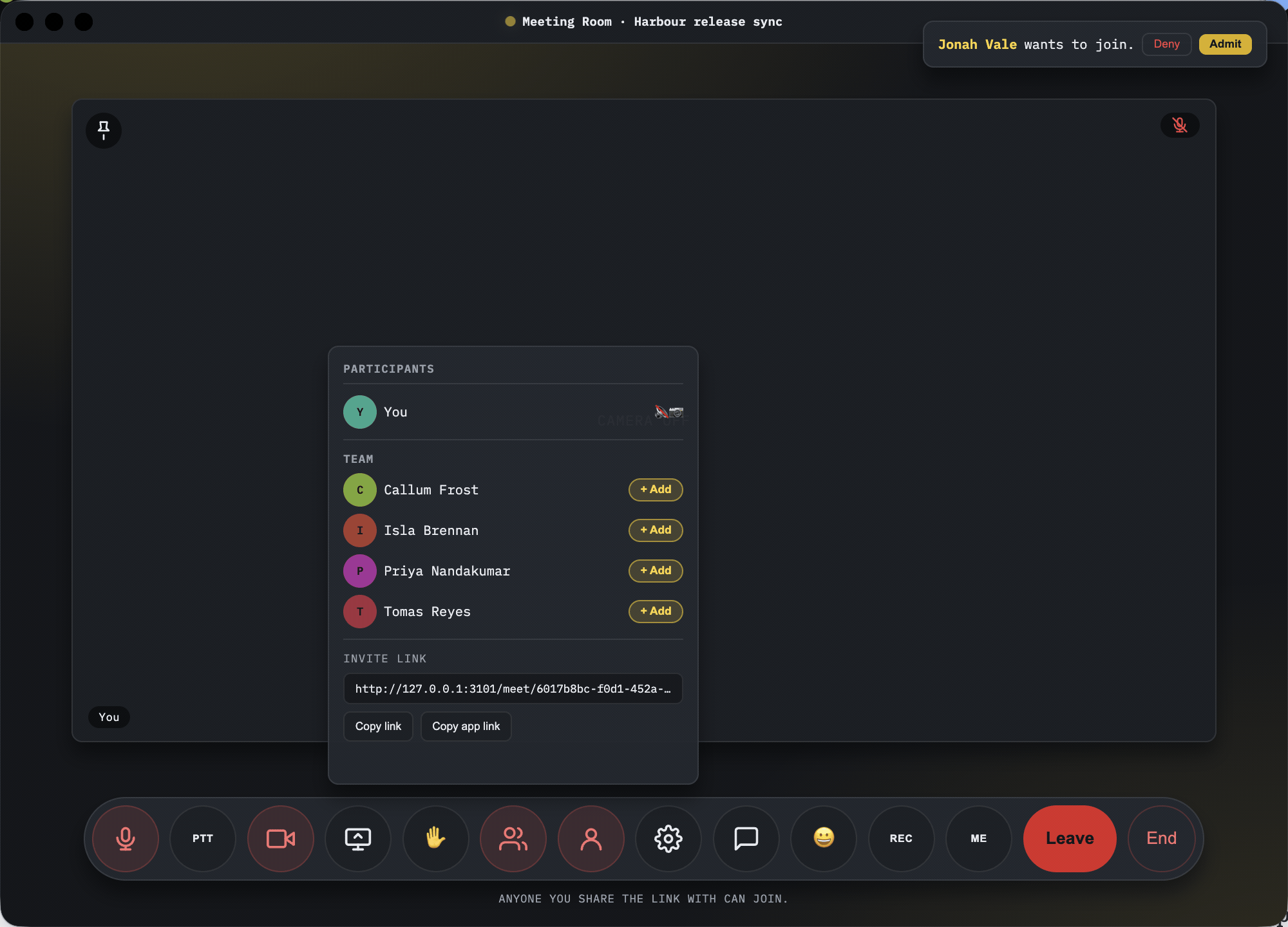
Section titled “Let people in”New meetings ask each guest to knock. When someone knocks, a banner appears: <name> wants to join.
- Look at the name. Check it is someone you expect.
- Click Admit to let them in, or Deny to keep them out.
Teammates signed in to a shared organization skip the knock.
In Settings (host only) under Meeting you can set the Title, set or Clear a Passcode, and turn Require knock to join (visitors without a token wait for admit) on or off. Tick Signed-in participants can let people in too to let others admit knockers. Click Save changes.
Remove someone
Section titled “Remove someone”- Open the tile menu on the person’s video tile.
- Choose Remove from meeting and confirm.
They are disconnected and see You were removed from this meeting. With Require knock to join on, they must knock to come back. With it off, they can rejoin from the link. Signed-in teammates are removed from all their devices, but can rejoin from the link. You cannot remove another host.
End the meeting
Section titled “End the meeting”Click End, then confirm End this meeting for everyone?. Click Leave instead to leave and keep it running for others.
Link lifetime
Section titled “Link lifetime”A guest’s access lasts as long as they use it: 12 hours after their last activity, or 30 days if they never opened the link. The meeting itself can also have an expiry. After that guests see This meeting link has expired. Ask the host for a new one.
If the link gets out, remove the people you do not know and make sure Require knock to join is on.
If it goes wrong
Section titled “If it goes wrong”- Guests cannot get in. Check Require knock to join: guests then wait for you to click Admit.
- A guest sees “wrong passcode”. Re-send the passcode, or Clear it in Settings.