
Updates
Updates
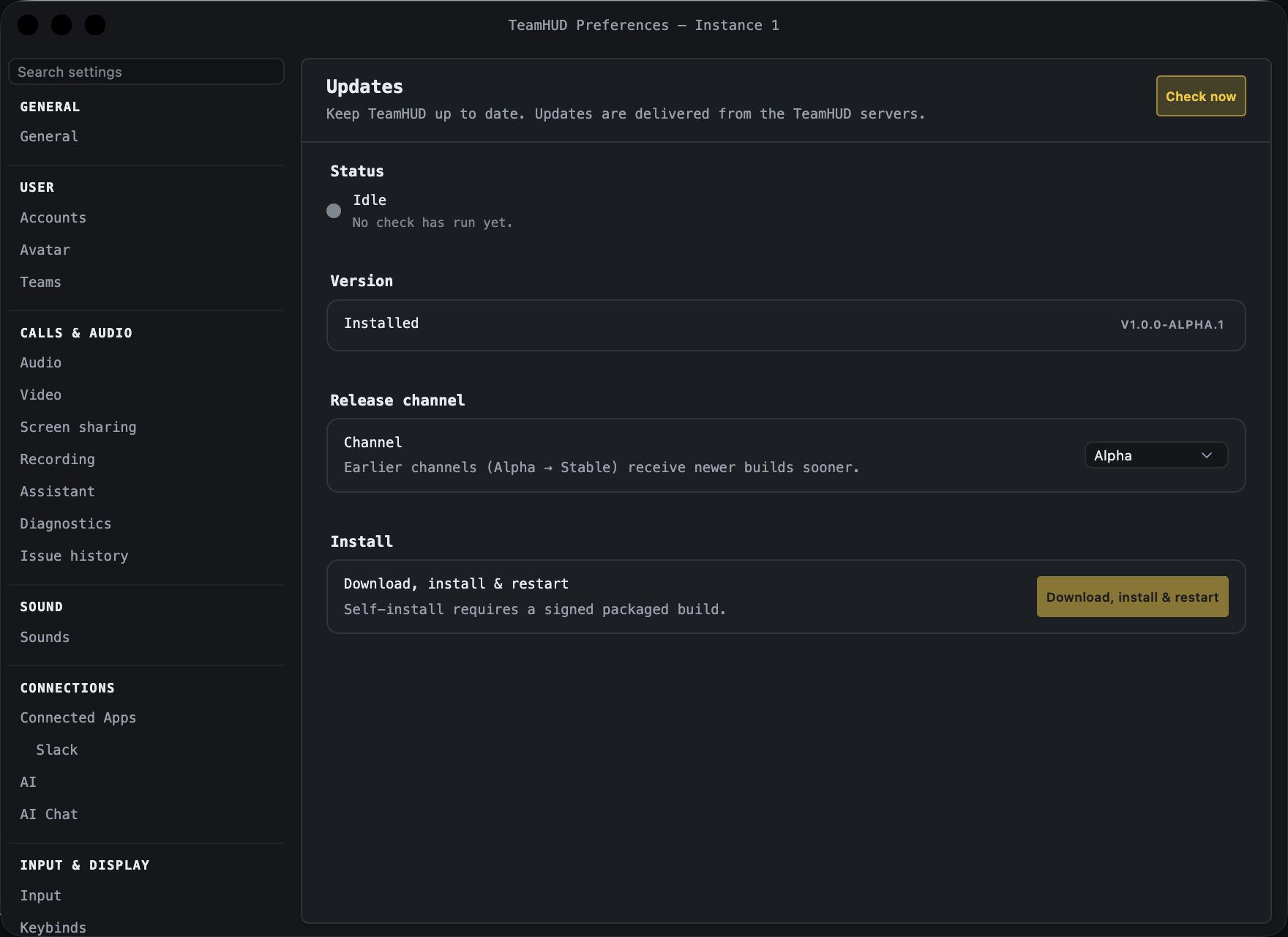
Section titled “Updates”Pane heading “Updates”: Keep TeamHUD up to date. Updates are delivered from the TeamHUD servers. It sits in the General group of the Preferences sidebar, under General.
| Control | What it does | Default | Notes |
|---|---|---|---|
| Check now | Contacts the update server and refreshes the status. | n/a | Shows “Checking…” while it runs. |
| Status | One line: Idle, Checking for updates…, Update available, Downloading update…, Update ready, You’re up to date, Update check failed, or Updates unsupported. | Idle until a check runs | A failed check shows a short reason; Technical details reveals the raw text. |
| Installed | Your current version. | n/a | |
| Available | The newer version, when one is offered. | hidden | |
| Channel | Which release channel to follow: Experimental, Alpha, Beta, Release Candidate, Stable. Earlier channels get newer builds sooner. | Alpha (a launch setting or the build can pin another) | The server decides which channels are offered, so the list can differ. |
| Release notes | Notes for the offered version. | hidden | Shown only when the update has notes. |
| Download, install & restart / Install & restart | Downloads the update if needed, then restarts TeamHUD to apply it. | Disabled until an update exists | Disabled with a reason when the build cannot self-install (“Self-install requires a signed packaged build”) or there is nothing to install. |
Platform notes
Section titled “Platform notes”- macOS and Windows: signed, packaged builds download and install updates themselves.
- Linux: notify-only. The tab tells you an update exists (“Update it via your package manager”); install it with your package manager or a new AppImage.
- Self-hosted servers: the desktop app always updates from the TeamHUD release host, not from the server you sign in to. Your System admin does not publish client builds. See Client updates.