
Join a meeting as a guest
A guest joins a TeamHUD meeting from a link in a web browser. You do not need an account or the app.
Before you start: a host sent you a link (it looks like https://…/meet/…), and you have a camera or microphone if you want to be seen or heard.
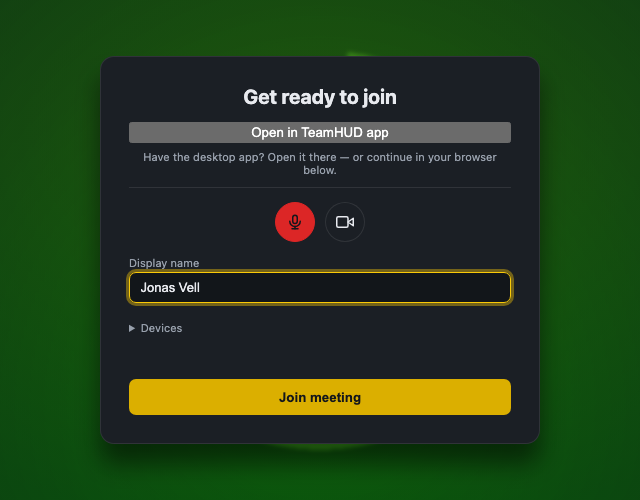
- Open the link. The join screen shows a preview of your camera.
- Enter your name. Type it under Display name (up to 80 characters, one line). Everyone in the meeting sees it.
- Enter the passcode, if asked. The host gives it to you separately.
- Allow your camera and microphone. Your browser asks the first time. You can join without them to watch and listen.
- Set the toggles. The microphone starts off. Click the camera or microphone button to change it, or pick devices under Devices.
- Click Join meeting.
If the host wants to let you in
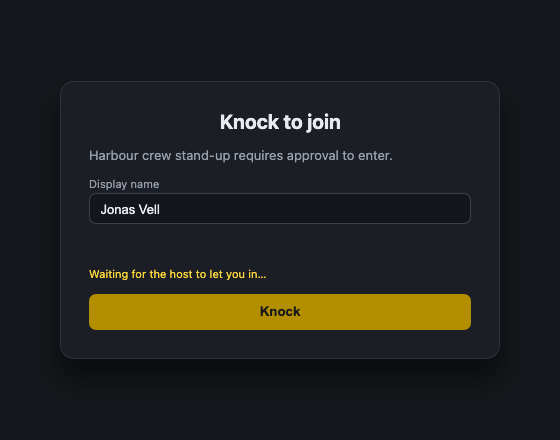
Section titled “If the host wants to let you in”Most meetings ask the host to approve each guest. Instead of Join meeting you see Knock to join: <meeting title> requires approval to enter.
- Name and passcode. Fill in Display name, and Passcode if asked.
- Knock. Click Knock. You see Waiting for the host to let you in….
- Wait. When the host clicks Admit, you go straight in.
If the host clicks Deny, the page shows Entry denied and you stay out. Ask the host before trying again. Could not connect to the lobby. means a network problem.
If you also have a TeamHUD account and the app is installed, you can pick Join as a guest instead or Use my account on the same screen.
Fix camera and microphone access
Section titled “Fix camera and microphone access”If your browser blocks them, the screen says Your browser is blocking the camera or microphone for this site, then:
Click the lock icon left of the address bar, switch Camera and Microphone to Allow, then reload the page.
Click the camera icon in the address bar, remove the blocked setting for this site, then reload the page.
Open Safari > Settings > Websites, set Camera and Microphone to Ask or Allow for this site, then reload the page.
Other messages: No camera or microphone was found (plug one in and reload), and The camera or microphone is in use by another app (close the other app or tabs using the camera).
In the meeting
Section titled “In the meeting”Mute, camera, Share screen, Raise hand, Participants, Chat and Reactions are on the bottom bar. If your connection drops, the status line reads Reconnecting… and the meeting reconnects by itself. Disconnected. means it did not.
Click Leave to leave. The meeting goes on without you. If the host ends it, you see Meeting ended.
If it goes wrong
Section titled “If it goes wrong”| You see | What to do |
|---|---|
| This meeting link has expired. Ask the host for a new one. | Ask the host for a fresh link. |
| This meeting has already ended. | Nothing to do. Ask the host to start a new one. |
| Wrong passcode. | Re-check it. Too many tries makes you wait. |
| This meeting is not open to guests. Sign in to TeamHUD to join. | The host only allows signed-in people. |
| You were removed from this meeting. | Ask the host to add you back. |
| The meeting server is busy. Try again in a few seconds. | Wait and retry. |