
Appearance
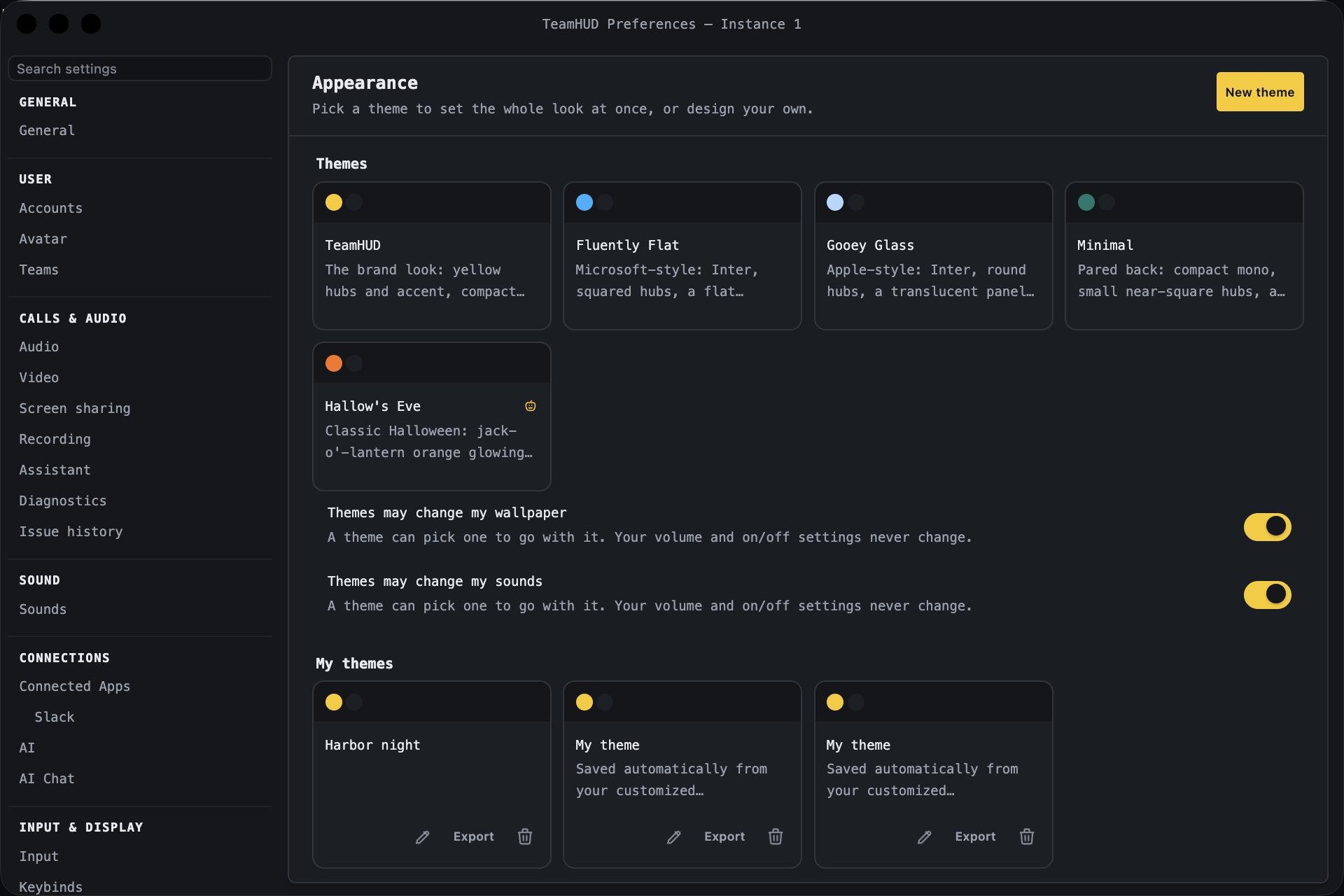
In the Preferences sidebar, open the Appearance group (palette icon). It has three pages: Theme, Live Wallpaper and Gaming Mode.
Heading “Appearance” (the page is called Theme in the sidebar). Pick a theme to set the whole look at once, or design your own.
| Control | What it does | Default | Notes |
|---|---|---|---|
| New theme | Opens a sandboxed theme editor seeded from your current look. | n/a | Nothing touches the live HUD until you press Apply to HUD in the editor. |
| Themes (cards) | Applies a built-in theme. Built-ins: TeamHUD, Fluently Flat, Gooey Glass, Minimal, Hallow’s Eve. | Not read from code | |
| Flavor tabs, Dark / Light | Switch a theme’s flavor and light or dark mode. | n/a | Shown only for a theme that offers a choice. The Dark / Light tabs are hidden while Match system light/dark is on. |
| Match system light/dark | Follows your operating system’s light or dark setting. | Off | Shown when a theme has both modes. |
| Themes may change my wallpaper | Lets a theme pick a wallpaper to go with it. | On | A theme never turns the live wallpaper on for you; it offers a Turn on wallpaper button. Your volume and on/off settings never change. |
| Themes may change my sounds | Lets a theme pick a sound pack to go with it. | On | Same limits as above. |
| My themes | Your own themes, each with Edit, Export and Delete. | Empty | Delete is by the trash icon. Exporting asks which things you made to include; sounds you recorded stay out unless ticked. |
| Imported theme | After importing a theme file: Dismiss, Save to My themes, Apply now (or Save and apply). | n/a | Bundled assets can be unticked to leave them out. |
| Backup: Appearance file | Export… saves your whole look to a file; Import… loads a backup or theme file. | n/a |
Live Wallpaper
Section titled “Live Wallpaper”Heading “Live Wallpaper”. Run a shader as your desktop background, behind every window and icon. Toolbar buttons: Import .wgsl and New from selected.
| Control | What it does | Default | Notes |
|---|---|---|---|
| Mode (Linux only) | Live animates the shader and pauses on battery; Still image leaves one frame of the selected wallpaper on the desktop and runs nothing. Applies at once. | Live | Shown only where the system offers the choice. |
| Live wallpaper | Turns the wallpaper on or off. | Off | Disabled where unsupported, for example native Wayland such as COSMIC. A “Not attached” badge means it is on but not attached to the desktop. |
| Displays | One display, Duplicate (same scene on each) or Span (one scene across all). | Not read from code | Shown with a Display picker for One display, and a layout preview. Notes warn about identical displays or uneven sizes. |
| Frame rate | Choose 5, 10, 15, 30, 45 or 60 fps, or Custom (1 to 240). | 30 fps | 30 is labelled recommended. Applies to every wallpaper and display. |
| Auto optimize | Steps the frame rate down when the machine can’t keep up. | On | |
| Ambient sound | Wallpapers marked with a speaker play a quiet looped soundscape. | Off | “Mute all TeamHUD sounds” in Sounds silences it too. |
| Ambience volume | Volume of the soundscape. | 15% | Slider 0 to 100. Disabled until Ambient sound is on. |
| In calls | Pause while my mic is live, or Keep, quieter (headphones). | Pause | Always silent while you share system audio. |
| Wallpaper cards | Pick a wallpaper from groups (Default, collections, Yours); each group collapses. | Aurora | Selecting opens a live preview. |
| Preview panel | Animated (off freezes one frame to save power), per-wallpaper option toggles and sliders, Preview ambience. | Animated on in preview | Under Advanced: Export, Edit code, and Delete for your own shaders. Buttons: Apply or Cancel; if the wallpaper is off, Turn on and apply or Keep it off. |
| Shader editor | Edit the WGSL source and Save shader. | n/a | For your own shaders. Saving stores the code; your desktop changes when you press Apply, which first checks that the code compiles. |
Gaming Mode
Section titled “Gaming Mode”Heading “Gaming Mode”. Keep the overlay while you play: swap the theme, hide widgets, and hold a key to interact. The mode itself never resumes after a restart.
| Control | What it does | Default | Notes |
|---|---|---|---|
| Gaming mode | Turns the mode on or off by hand. | Off | Says “Turned on automatically: a fullscreen game is running” when auto-detect did it. |
| Turn on for fullscreen games | Enters the mode when a fullscreen game runs. | Off | Turns off a few seconds after the game leaves fullscreen. Turning it off by hand sticks until the next game. Disabled where the session does not report window geometry (Wayland/GNOME). |
| Interaction key | Hold this key to use the overlay while gaming. | Ctrl | Options: None (always interactive), Ctrl, Alt / Option, Shift, Win / Cmd. Without key tracking, such as macOS input monitoring off, hover works as normal. |
| Theme | Theme applied while gaming. Your own comes back afterwards. | Keep current theme | Lists built-in themes and My themes. |
| Widgets shown while gaming | One toggle per widget: Team, Messages, Quest Log, Resources, Window Activity, AI Chat, Mini Browser, Folder Hubs, plus enabled custom widgets. | All shown | Turning a toggle off hides that widget only while gaming mode is on; your layout is untouched. |