
Connections
Open Preferences and look under AI & Connections in the sidebar. Its Connected apps group has the Overview page (and one page per app), and its AI group has AI models and AI Chat.
Connected Apps
Section titled “Connected Apps”Connect accounts so TeamHUD can search and show their content. The pane shows a badge such as “2 / 3 connected”. The apps are Slack and, on the Pro plan, email (see Email (IMAP) sub-tab).
| Control | What it does | Default | Notes |
|---|---|---|---|
| Apps list, Slack row | Shows how many Slack workspaces are connected. | “Not connected yet.” | The button reads Set up until a workspace is connected, then Manage. It opens the Slack sub-tab. |
| Datasources (collapsed) | Per-source status behind a “Show N datasources” disclosure. Each row has an Open button. | Collapsed | Same information as the Apps list, one level down. A status of “unconfigured” means the app is not connected yet. |
Slack sub-tab
Section titled “Slack sub-tab”The sub-tab is named Slack and sits under Connected Apps.
| Control | What it does | Default | Notes |
|---|---|---|---|
| Account, Connect | Opens your browser to sign in to Slack and authorize access. | Not connected | The button reads “Opening browser…” while waiting, and a Cancel button appears. A failed sign-in shows its error under the row. |
| Open in | Picks which browser is used for sign-in. | Browser default | Only shown when more than one browser is found. |
| Connected workspaces | Lists each connected workspace, its status and who you are connected as. | Empty until connected | Disconnect removes that workspace. |
| Use your own Slack app (under Advanced) | Lets you paste your own OAuth Client ID and Client secret. | Off, built-in app used | Only appears if the Slack provider offers this option. Reconnect the account after changing it. Use the built-in app clears it. |
Email (IMAP) sub-tab
Section titled “Email (IMAP) sub-tab”A Pro preview in the 1.0.0 beta. It connects a mailbox directly over IMAP and SMTP. That includes Gmail through an app password, and Fastmail, iCloud, Yahoo, Zoho or any other IMAP server. Your password is stored encrypted on this computer and is never sent to TeamHUD’s servers. The AI chat cannot read your mail.
| Control | What it does | Default | Notes |
|---|---|---|---|
| Accounts | Lists each connected mailbox with its status and server. Edit reopens the form with the account’s settings filled in (leave the password blank to keep the saved one) and saves in place. If you change a server or the username, enter the password again: a saved password only goes back to the server it was saved for. Remove asks you to confirm, then disconnects the mailbox and deletes its saved password. | “No mail accounts connected yet” | |
| Email address | The address you want to connect. Known providers fill in their server settings for you. | Empty | |
| Provider | The provider preset, picked from the address. | Detected | Outlook.com, Microsoft 365 and Google Workspace (work or school Google accounts) are not offered yet: they only allow signing in with Microsoft or Google, which TeamHUD does not support in the beta. An address on one of them says so instead of showing the form. |
| Password or app password | The password used to sign in to the mailbox. | Empty | Gmail, iCloud and Yahoo need an app password, not your normal one. Generate one opens the provider’s page for it, and Setup guide shows the provider’s steps in a short dialog with direct links. For Gmail, 2-Step Verification must be on first. |
| Tab name | Optional name for this account’s tab in the Email widget. Leave blank to use the automatic name (for example “Gmail”). A name you type is used as written. | Blank | Up to 40 characters. Changing only the tab name does not ask for the password again. |
| Show folders in a sidebar | Mail view group, above the account list: shows your folders and unread counts as a column on the left of the Email tab instead of the folder menu. | Off | Applies to the Email tab straight away. The Email tab toolbar has a matching Show folders / Hide folders button, and you can drag the edge of the folder and message-list columns to resize them. |
| Server settings | IMAP and SMTP server, ports, and a username if it differs from the address. | Filled from the provider | Only needed for a provider TeamHUD does not recognise. |
| Test connection | Signs in once to check the settings without saving them. | ||
| Add account | Saves the account and starts showing its mail in the Email tab. | Disabled until an address is entered | Without Pro it stays disabled and reads “Mail is part of the Pro plan.” |
Heading: “AI / LLM”. Shows which language-model provider TeamHUD’s own smart features use, such as skill synthesis. Providers are configured with environment variables, not in this pane.
| Control | What it does | Default | Notes |
|---|---|---|---|
| Refresh | Re-reads provider status. | n/a | Disabled while loading. |
| Active provider | Name, model and a ready / not ready badge for the provider in use. | None | With no provider it says “No LLM provider is configured” and points to ANTHROPIC_API_KEY or OPENAI_API_KEY. |
| Registered endpoints | Table of ID, Model, Tier, Cost / 1k and Status. Test sends a short test prompt and shows the reply and latency. | Hidden when none | Test is disabled for endpoints that are not ready. |
| Configuration (Environment variables) | Lists the variables to set before starting TeamHUD. | Collapsed | ANTHROPIC_API_KEY, ANTHROPIC_MODEL (default claude-sonnet-4-6), OPENAI_API_KEY, OPENAI_BASE_URL, OPENAI_MODEL (default gpt-4o), PREFERRED_LLM_PROVIDER (claude or openai). |
AI Chat
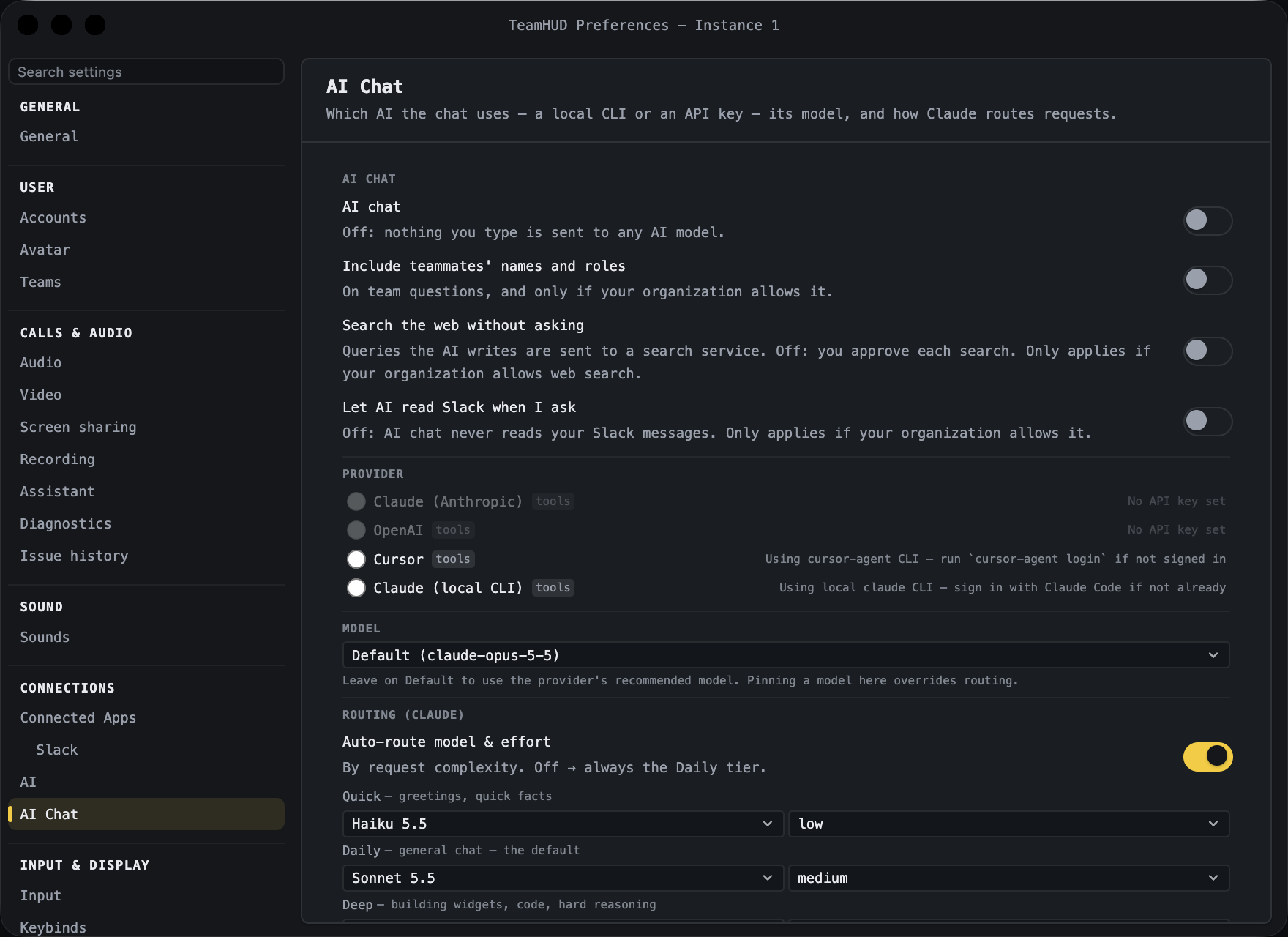
Section titled “AI Chat”Turns the AI chat widget on (it starts off) and chooses which AI it uses: a local command-line tool or an API key, its model, and how Claude requests are routed. The same settings appear in the widget’s own settings dialog.
| Control | What it does | Default | Notes |
|---|---|---|---|
| AI chat | Master switch for the AI chat widget. | Off | Off means nothing you type is sent to any AI model. |
| Include teammates’ names and roles | On team questions, adds them to what goes to the AI model. | Off | Only if your organization allows it (Org owner or Org admin policy). |
| Search the web without asking | Queries the AI writes are sent to a search service. | Off | Off means you approve each search. Only applies if your organization allows web search. |
| Let AI read Slack when I ask | When you ask for a catch-up, the Slack conversation is sent to your AI model and you approve each use. | Off | Only applies if your organization allows it. |
| Provider (radio list) | Selects the provider. Entries come from detection: Claude (Anthropic), OpenAI, Cursor, Claude (local CLI). | None selected | Unavailable providers are greyed out. A “tools” chip marks providers that can act with tools. Picking a provider resets the model to Default. |
| Model | Picks the model for the selected provider. Includes Custom… for a model name you type. | Default | Default uses the provider’s recommended model. Pinning a model overrides routing. Hidden if the provider lists no models. |
| Auto-route model & effort | Chooses model and effort by request complexity. | On | Off means always the Daily tier. Shown only when the Claude provider is available, under “Routing (Claude)”. |
| Quick, Daily, Deep | Model and effort for each tier: Quick for greetings and quick facts, Daily for general chat, Deep for building widgets, code and hard reasoning. | Quick haiku / low, Daily sonnet / medium, Deep opus / high | Effort choices: Default effort, low, medium, high, xhigh, max. |
| Routing guidance (optional) | Plain-English rules for ambiguous messages. | Blank | Blank means pure heuristics with no extra latency. |
| Use my global Claude Code config | Loads skills, plugins and settings from ~/.claude alongside TeamHUD’s. |
Off | Warning in the UI: global allow-rules can auto-approve tools and bypass the approve/deny prompt, and global hooks that print can corrupt replies. |
| API Keys: Anthropic, OpenAI, Cursor | Paste a key; a saved key shows “saved”. | Empty | Stored locally and sent only to the provider you choose. Pasting replaces the saved key. |
| Font size | Scales chat text. | 100% | Slider from 50% to 200% in steps of 5. |