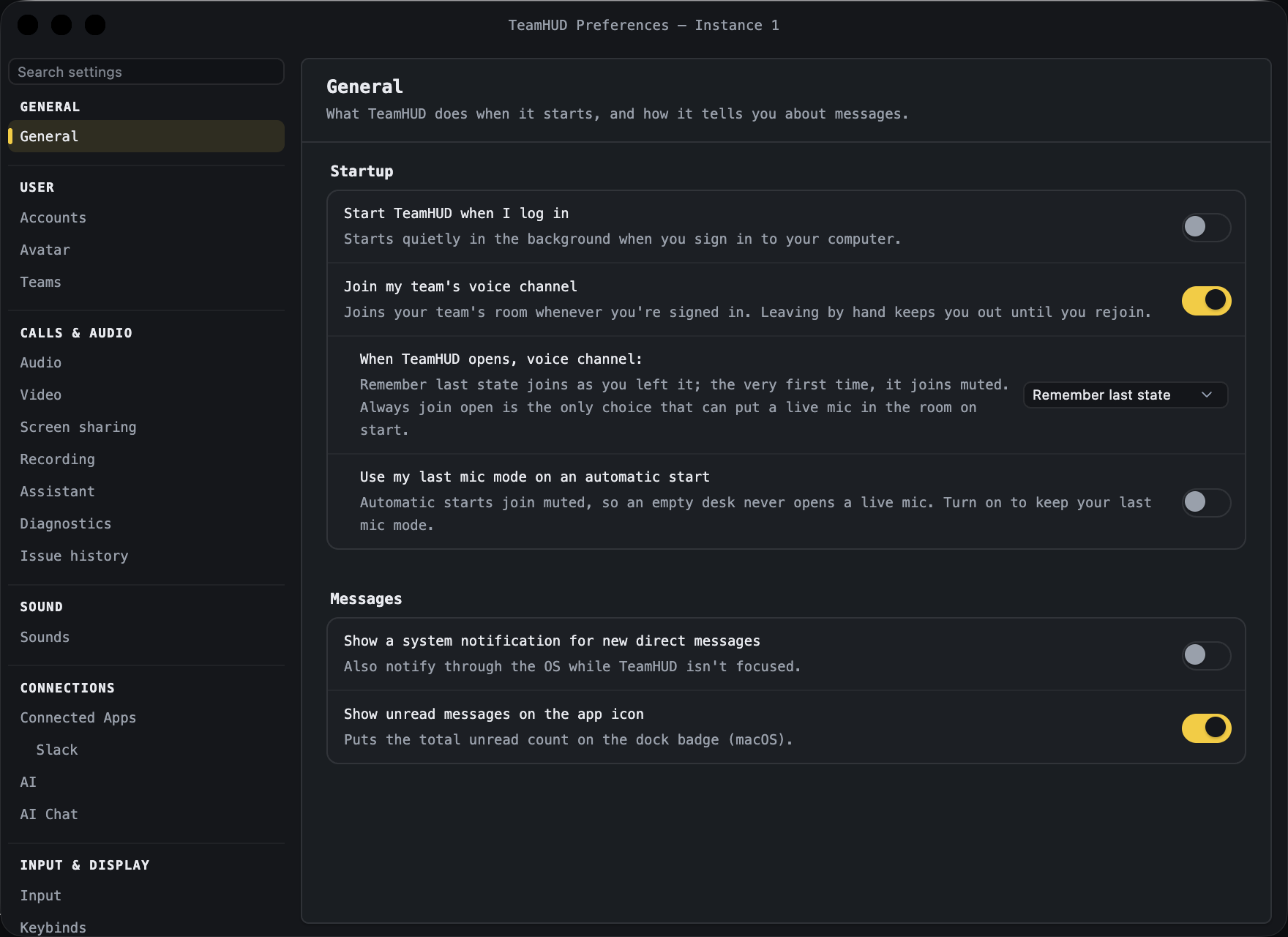
Starts quietly in the background when you sign in to your computer.
Off (it reflects the real login item on your computer)
Greyed out in a secondary instance, which cannot change the login item of your main install.
Join my team’s voice channel
Joins your team’s room whenever you’re signed in. Leaving by hand keeps you out until you rejoin.
On
Applies at startup and when you sign in mid-session.
When TeamHUD opens, voice channel
Choose what the automatic join does with your mic: Remember last state, Always join muted, or Always join open (unmuted).
Remember last state (the very first time it joins muted)
Indented under “Join my team’s voice channel” and greyed out until that is on. “Always join open” is the only choice that can put a live mic in the room on start.
Use my last mic mode on an automatic start
Automatic starts join muted, so an empty desk never opens a live mic. Turn on to keep your last mic mode.
Off
Indented under the row above; greyed out until “Join my team’s voice channel” is on.