
Recording, captions and transcripts
When a call or meeting is recorded or captioned, you always see it, and guests are asked before anything about them is captured. This page shows what each notice means and what you can switch off.
What you see
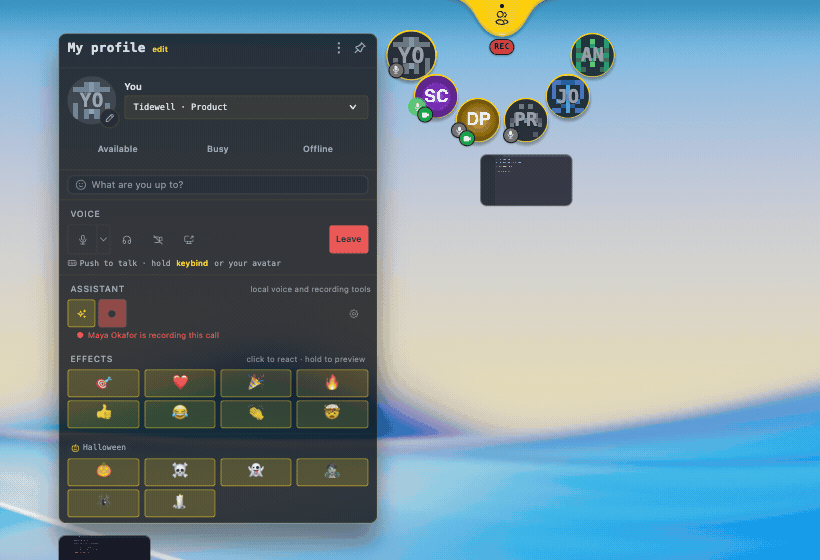
Section titled “What you see”- A chip at the top of the call, such as ● REC 12:03, ● REC + CC 12:03 or ● CC 12:03. REC is recording, VIDEO means video is saved too, CC is captions or transcription. Hover it to see who started it.
- A line when a teammate transcribes only themselves: CC <name> is transcribing their own speech. Only their own microphone is transcribed, for them alone.
- Your own chip: ● CC · only you when you are the one transcribing yourself.
The consent step
Section titled “The consent step”Who is asked:
- Guests, and anyone who has not finished setting up their TeamHUD account, see the consent card below.
- Members who signed in and accepted the TeamHUD terms are not asked. The terms cover being recorded in TeamHUD calls, so they are told instead: the REC chip and who started it.
- Read the card. Joining a recorded call, or a recording starting while you are in it, shows This call is being recorded (audio) and transcribed (the exact words depend on what is captured), who started it, and the line By staying in this call, you consent.
- Choose. Click Continue to stay, or Leave call (in a meeting window: Leave meeting).
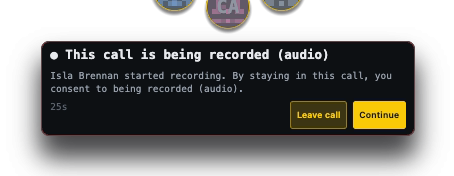
A countdown runs: You will be removed in N s unless you continue. If you do nothing, you are removed from the call. A team that records all its calls shows This team’s calls are recorded with the same two choices before you join.
The notice also names any outside service. If speech is sent to DeepInfra to improve the transcript, it says so, and it says where the finished transcript is made.
What you can turn off
Section titled “What you can turn off”- Captions on your screen. Click CC on the chip to hide or show them. History shows earlier lines.
- Only your own transcription. Click Stop on the ● CC · only you row.
- Anything the call is capturing, if you started it or lead the team. Open Change… under the chips and choose Turn off captions, Turn off suggestions, Turn off keeping the transcript or Turn off saving video. Turning something on again needs a new recording, so everyone is asked again.
- Leaving. You can always click Leave call.
Record a call yourself
Section titled “Record a call yourself”- Start. In the call, click ● Record….
- Choose. In Record this call, tick Transcript, Audio and Video under What to record. Only what your organization allows can be ticked.
- Start. Click Start. Everyone is told. Guests are asked to consent.
If recording is off for your organization you see Recording is off for this organization. An Org owner or Org admin sees Turn it on…. Recordings are kept under Recordings in the tray menu, where you can review or delete them.
If a recording stops early
Section titled “If a recording stops early”A message such as Recording stopped early — audio couldn’t be saved. appears in the call. The call itself carries on.