
Quest log
Add a quest, give it to someone, and finish it. A quest is one task. It can be only yours, or on your team’s board.
Before you start: you are signed in. For team quests, you need an active team.
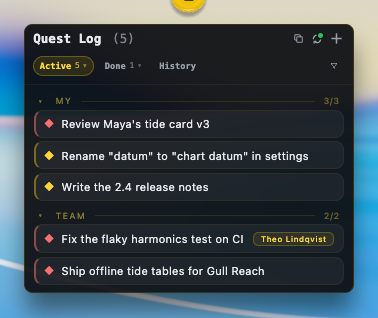
Add a quest
Section titled “Add a quest”- Open the Quest Log. Hover the Quest Log hub. Or say “new quest” with Voice assistant.
- Choose Add task. It is the + button in the panel header.
- Write a title. Type it in Title… (required, up to 200 characters). Add a Description (optional) if it helps.
- Pick who it is for. Under Scope, choose Me (only you) or Team (your team’s board). Team is greyed out until you have an active team.
- Set the details. Choose the List (Active, Next or Backlog), the Priority (low, normal, high), the Type and a Due date (Today, tomorrow, Friday or a date).
- Choose Add.
What you’ll see: the quest at the top of the list you chose, in My or Team.
Shortcut: start the title with a type word and a dash or colon. “Bug: login redirect loops” makes a bug titled “login redirect loops”. Recognized words include bug, fix, feature, enhancement, improve, task, chore and todo.
Assign a quest
Section titled “Assign a quest”On a team quest, point at the row and use the Me button (tooltip Assign to me). It claims the quest for you. Hold the pointer on it to open a list and pick a teammate instead.
To give it back, use the same button (tooltip Release (unassign me)), or choose Unassign in the teammate list. A quest already claimed by someone else asks you to unassign it first.
Finish a quest
Section titled “Finish a quest”- Click Done on the quest row (tooltip Mark done).
- Confirm. The button changes to Confirm (tooltip Confirm complete). Click again to finish it. Leave it and it goes back; Undo — keep open also cancels.
- Undo if needed. For a moment the row offers Undo completion. After that the quest sits under Done.
To clear old quests, Archive one the same two-click way. Archived quests are in Archived and can be Restored. To bring back a done quest, use its un-done button.
Personal vs team
Section titled “Personal vs team”- My shows quests with scope Me. Only you see them.
- Team shows your active team’s board. Use the team picker to see one team or All teams. Team quests carry a Team quest badge.
- To move a quest, edit it and change Move to between Me and Team.
Where quests show
Section titled “Where quests show”- Tabs: Active (with Next and Backlog beside it), Done (with Archived), and History, a log of recorded changes. Hover Active or Done to reveal the others.
- Empty lists say “No quests yet” or “Nothing on the team board”, with an Add one button.
- Right-click the hub, then under Mode choose Frameless for a bare Next Up list with no header. Rows before “Show all” sets how many rows show.
- Filter narrows by priority, type, creator and assignee. Copy visible tasks copies the list as Markdown, CSV or JSON.
- Open a quest to read its Comments and write one in Add a comment….
- In team chat, Share to #… on a finished quest posts it to the team channel.
If it goes wrong
Section titled “If it goes wrong”- “Couldn’t load quests”. Chat or the server is unreachable. Choose Retry, or the refresh button in the header.
- Team is greyed out when adding. You have no active team. Pick one in Preferences, under Teams.
- A team quest will not assign. Someone else holds it; unassign them first.