
How it works
How TeamHUD works
The overlay, its buttons and panels, and how to arrange them.
The map
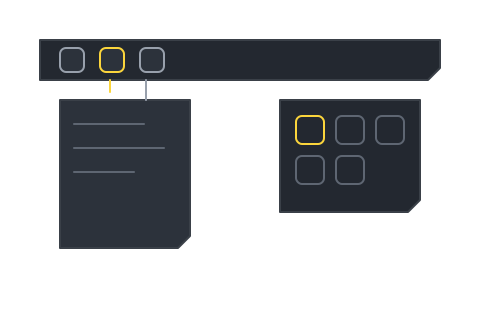
Section titled “The map”TeamHUD draws a transparent overlay over your screen. Everything you use lives on it.
- Overlay the transparent layer over your apps
- Hub a button you can drag anywhere
- Panel what opens from a hub
- Folder a hub that holds other hubs
A widget is a feature on the overlay, such as Team, Messages or Quest Log. Each widget shows up as a hub. Hover the hub and its panel opens.
Where to go
Section titled “Where to go”Hubs and widgetsOpen, move, pin, turn on and off.
FoldersGroup hubs into a hover-to-open grid.
Input and display settingsMonitor, hotkeys, input.
Appearance settingsThemes and wallpaper.
Windows
Section titled “Windows”Some things open in their own window instead of on the overlay, such as Preferences and calls. See Getting started for the tray menu and Calls.
If your system cannot draw the transparent overlay (some Linux desktops such as Hyprland and COSMIC), TeamHUD switches to floating windows by itself and shows each widget as its own window. There is no setting to pick this in Preferences.