
Messaging
Voice assistant
Speak a command, confirm it on a card, and undo or recall what it did.
The voice assistant is TeamHUD’s hands-free helper. You speak a command, it shows what it understood on a card, and it does the job.
Turn it on
Section titled “Turn it on”Voice is off until you turn it on. Open Preferences, Assistant and, under Voice actions and dictation, choose How it listens:
| Option | What it does |
|---|---|
| Off | The default. |
| Hold Option + Space (Alt + Space on Windows and Linux) | Talk while you hold the keys. You can record a different Hold key; it must differ from your push-to-talk key, and it works in every mode. |
| Say “Hudson” | It listens for its name. The option shows the name you have set. |
| Always | It listens continuously. |
Only your microphone is used, for you only. Your organization can restrict the options. If it does not allow transcribing your own voice, the setting says so and stays off.
Saying commands
Section titled “Saying commands”Start with the assistant’s name when you are using the name option, then say what you want: “Hudson, create a quest to fix the login redirect.” Say help to see a list of commands with an example for each, grouped by feature.
Each feature supplies its own commands. For example the AI chat adds “ask the AI about …” and “new AI chat”.
Cards: confirm or cancel
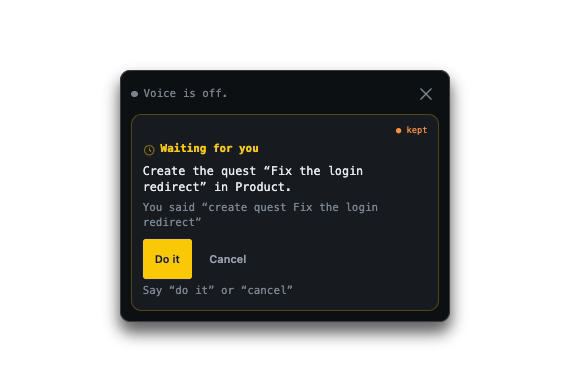
Section titled “Cards: confirm or cancel”The voice assistant shows a card with a one-line summary of what it will do. Some commands run immediately; others wait for you. When a card is waiting:
| Say | Also works | Result |
|---|---|---|
| “do it” | yes, go ahead, confirm, make it so | Runs it. |
| “cancel” | no, never mind | Drops it. |
| “stop” | “close”, “that’s all” | Closes the card and stops listening. |
You can also answer by clicking the card. If it guessed wrong, you can add more words to a waiting card, or say “fix it up with AI” when the backup model is available.
Undo and recall
Section titled “Undo and recall”- “Undo that” reverses the last thing it did (also “take that back”).
- “What did you create?”, “what quests did you make?” or “what was the last quest?” tells you what it did this session.
Quest phrasing
Section titled “Quest phrasing”Quests are created by voice with a card that always asks first. All of these work:
- “create a quest to fix the login redirect”
- “add a quest to improve the wallpaper for Design by Friday”
- “remind me to send the invoice”, “note to self …”
- “track … as a task”
- “add … to the quest log”
You can add a team (“for Design”), a due day, and a priority. A reason after “so that” or “because” goes in the description, not the title. Other quest commands: “do we have a quest about …” and “open a new quest” (opens the form). See Quest log.
Settings
Section titled “Settings”The voice assistant has two settings areas, shown inside Preferences, Assistant:
- Understanding: let a small model on this computer read commands your exact phrases missed, choose where it runs, learn from your corrections, and optionally suggest a card by word matching. The local model, the backup model and word matching are on by default (the owner approved this because they run on your computer and send nothing out); Learn from my corrections and the voice debug history are off until you turn them on.
- Responses: short in-character replies to questions like “who are you?”. You can switch built-in ones off and add your own phrases, replies and an emote.