
Input and display
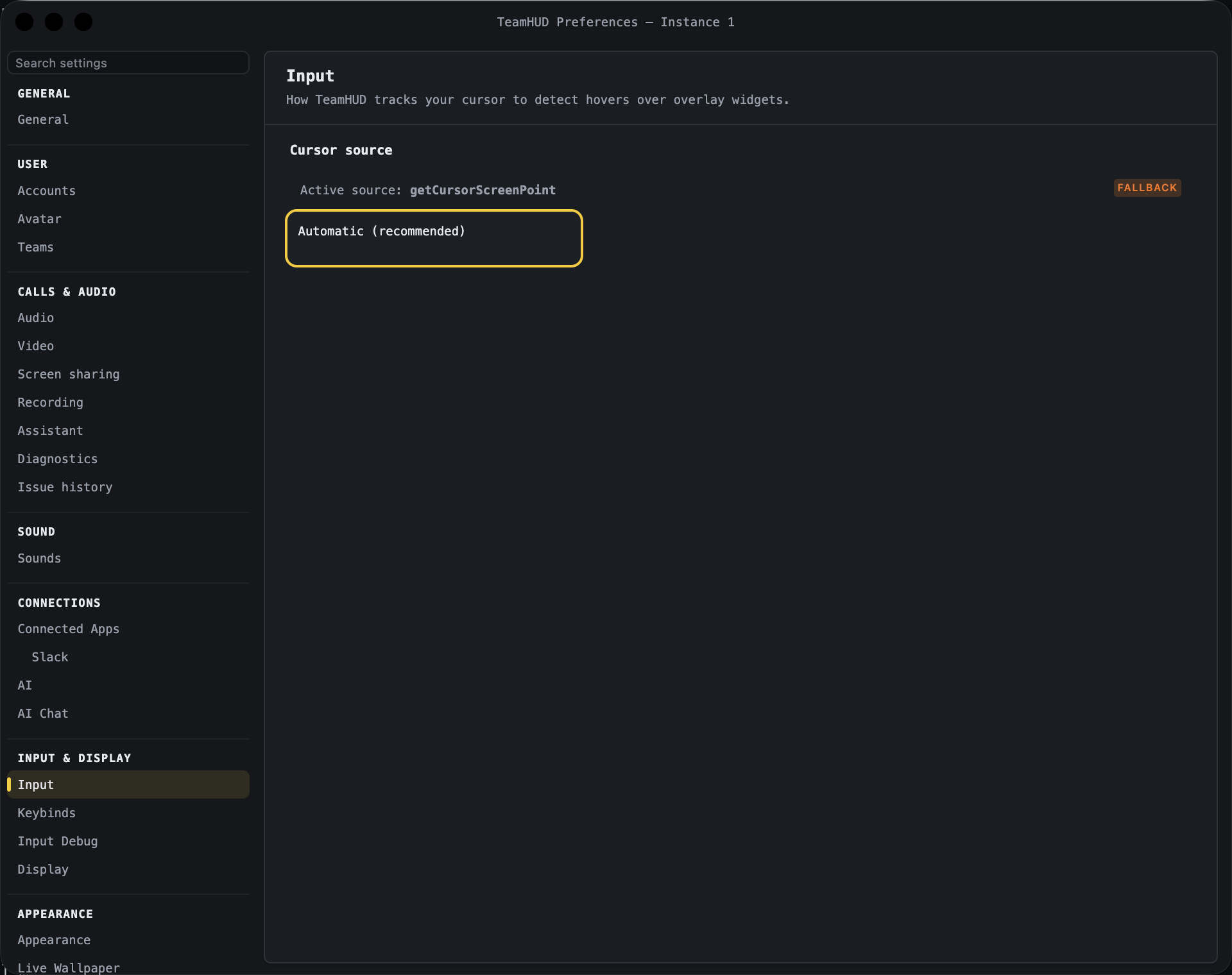
In the Preferences sidebar these live in two groups: Display & Overlay (Display) and Input & Keybinds (Input, Keybinds). Input Debug is under Developer.
Heading “Input”. Chooses how TeamHUD finds your cursor so it can tell when you hover a widget on the click-through overlay.
| Control | What it does | Default | Notes |
|---|---|---|---|
| Active source | Read-only line naming the source in use, with a healthy or fallback badge. | n/a | Fallback appears for the polling source or when a GNOME extension is installed but not active yet. |
| Cursor source cards | Pick Automatic or one specific source. Choosing applies without restarting. | Automatic | The list is probed on your machine. Sources that cannot run are disabled with a reason. Badges: recommended, needs restart, needs install. |
| Install (on a card) | Installs a source that needs it. | n/a | May say you need to log out and back in once to activate it. |
On platforms with no choice, the pane says cursor-source selection isn’t available and the native cursor API is used.
Keybinds
Section titled “Keybinds”Heading “Keybinds”. Every global shortcut TeamHUD listens for, in one list.
| Control | What it does | Default | Notes |
|---|---|---|---|
| By section / Flat list | Groups the list by section, or shows one flat list. | By section | Sections are collapsible. |
| Conflicts | Shows only shortcuts that share a combo. | Off | The chip shows a count when conflicts exist. |
| Search | Filters by name, description, section or combo. | Empty | A counter shows shown / total. |
| Combo box | Shows the current combo, or “Not bound”. | Each shortcut’s own default | Differs per shortcut. |
| Change | Press the new combo. Esc cancels. | n/a | A combo needs at least one modifier key. Pressing only a modifier keeps listening. |
| Reset | Restores the default combo. | n/a | Shown only on a shortcut you changed. |
| Clear | Removes the combo, leaving it “Not bound”. | n/a | Shown on a bound shortcut you have not changed. |
If your new combo is already used, you get a prompt: “already used by X. Bind it to both? Pressing it will fire both.” Bind to both keeps both bindings; Cancel changes nothing. Taking a combo never removes it from its previous owner. Combos that clash show an “Also bound to” warning and appear under Conflicts. The app can also refuse a combo outright, and the reason is shown in red.
Input Debug
Section titled “Input Debug”Heading “Input Debug”. Where the cursor is, which source reports it, and what the overlay hit-tests under it. Use it when clicks or hovers misbehave; support may ask for a copy of it.
| Control | What it does | Default | Notes |
|---|---|---|---|
| Copy diagnostics | Copies the report to the clipboard. | n/a | |
| Refresh | Re-reads the cursor, display and region data. | n/a | |
| Cursor source banner | “Cursor source: …” with the detected session and desktop. | n/a | Read-only. |
| Input / cursor tracking, Displays & coordinates | Read-only tables. | n/a | |
| Interactive region borders | Draws a border around every interactive region in the overlay. | Off | |
| Reset all interactive regions | Makes every overlay widget re-register its clickable areas. | n/a | Use when clicks pass through after dragging or deleting folders. |
Display
Section titled “Display”Heading “Display”. Pick which monitor TeamHUD runs on. Applies live, no restart. If the chosen monitor is unplugged, TeamHUD falls back to the primary display.
| Control | What it does | Default | Notes |
|---|---|---|---|
| Monitor cards | Pin TeamHUD to one monitor, or choose Automatic. | Automatic | Automatic follows whichever display the system calls primary. Cards show size, scale and “primary”; a current badge marks the active one. One display at a time; spanning is not supported. |
| Hand cursor over TeamHUD | While your pointer is over a hub or panel, TeamHUD takes keyboard focus so buttons show the hand cursor, without raising its other windows. | On | macOS only. Turn it off if it gets in the way of typing in other apps. A change takes effect after restart. |
| Extend over the Dock / taskbar | Lets widgets use the strip the Dock or taskbar sits in. | Off | The menu bar stays clear. |
| Nudge the overlay in from an edge (Advanced) | Top, Bottom, Left, Right insets, in pixels. | 0 each | For when a bar is still covered. Saved shortly after you stop typing. Reset to 0 clears all four. |