
Notifications
TeamHUD tells you about new things in a few quiet ways, and one system notification you can switch on. This page lists each and where to control it.
What notifies you
Section titled “What notifies you”| What | When | How to control |
|---|---|---|
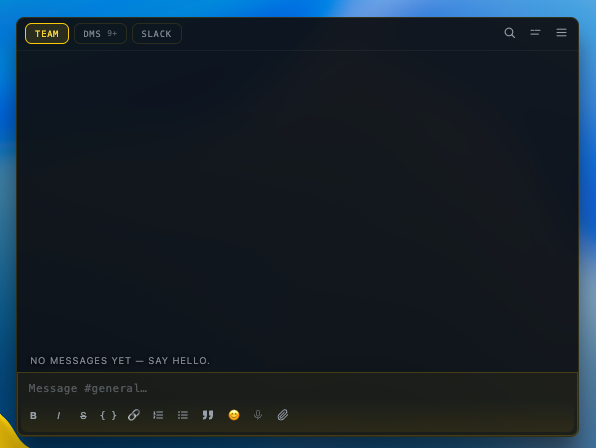
| Count pill on a chat tab | Unread messages on Team, DMs, Slack. Shows 9+ above nine. | Clears as you read. |
| Badge on the Team Chat hub | Unread total. | Off by default. Right-click the hub, tick Show unreads. |
| Count pill on the AI chat | An answer finished while you were away. Shows only with 2 or more, capped at 9+. | Clears when you open it. |
| Toast for a suggested quest | A quest suggested to you from chat arrives. It has an Open button. | Suggestions are off until you tick Suggest quests from chat on the hub’s right-click menu. |
| Chime | A message arrives. | Message received in Sounds: on, 60% by default. |
| App icon badge (macOS) | Total unread on the Dock icon. | Preferences, General, Show unread messages on the app icon. |
| System notification | A teammate’s direct message arrives. | Off by default. See below. |
Get system notifications for DMs
Section titled “Get system notifications for DMs”Direct messages can raise an operating-system notification, but only if you ask.
- Open Preferences. Choose General.
- Find Messages. In the Messages group, turn on Show a system notification for new direct messages.
What you’ll see: the notification’s title is the sender’s name and the body is the message, cut at 140 characters. An attachment with no text reads “Sent an attachment”.
Two things keep it quiet:
- TeamHUD is in front. If any TeamHUD window has focus, you get no system notification; the badge and chime already told you.
- It makes no sound. The system notification is silent. The chime is the only sound, so one message never alerts twice.
On macOS, TeamHUD must be allowed in System Settings, Notifications, or nothing appears. Unsigned development builds are not allowed there.
Do Not Disturb
Section titled “Do Not Disturb”TeamHUD has no Do Not Disturb switch. To mute the sounds, turn off Message received in Sounds. To stop the system notification, turn the setting above off. Setting your status to Busy tells teammates you are heads down; it does not silence your own alerts. You can say “I’m busy” or “do not disturb” to set it. See What you can say.
If it goes wrong
Section titled “If it goes wrong”- No system notification. Check the setting is on, that no TeamHUD window is focused, and that your operating system allows TeamHUD notifications.
- No badge on the hub. It is off by default; tick Show unreads on the hub’s right-click menu.
- Too many chimes. Lower or turn off Message received in Sounds.