
Troubleshooting
Find your symptom, follow the steps. If nothing here helps, send feedback with logs.
Locked out of an organization? See Locked out or access paused.
TeamHUD can’t use my microphone or camera
Section titled “TeamHUD can’t use my microphone or camera”You see a toast: TeamHUD can’t use your microphone (or camera). Microphone access is turned off. Allow it in your system settings, then try again.
- Click Open system settings on the toast. It opens the right pane. The toast stays up for 20 seconds.
- Turn TeamHUD on for Microphone (or Camera).
- Join the call again.
System Settings, then Privacy & Security, then Microphone or Camera. Tick TeamHUD. If macOS asks, quit and reopen TeamHUD (tray, Restart).
Settings, then Privacy & security, then Microphone or Camera. Turn on access, and turn on Let desktop apps access your microphone.
There is no pane to open, so the toast shows only the words. Check that your sound server or browser-level device permissions allow TeamHUD, and that the device is not in use by another app. The sandbox you installed with (Flatpak, Snap) may need microphone access granted.
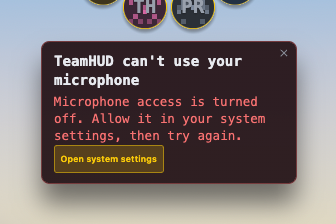
You can also review every permission in Preferences, under Privacy and Security, then System Access.
Nobody can hear me / I can’t hear anyone
Section titled “Nobody can hear me / I can’t hear anyone”Start with what the toast says.
- TeamHUD isn’t picking up your microphone. You held push-to-talk but the input meter never moved. Pick the right input in Preferences, under Calls, then Audio, and check it is not muted or turned down in your system settings.
- A teammate can’t hear you. The toast reads Your mic is live and your audio is reaching the server, so this is likely a delivery problem on their side. It often clears itself. If not, mute and unmute your mic.
- You are muted. The first time you join, and when TeamHUD starts at login, you join muted. Unmute, or change When TeamHUD opens, voice channel: in Preferences, under General.
- You can’t hear them. Check your output device in Preferences, under Calls, then Audio, and your system volume.
Change devices and test levels on the Calls audio settings page.
The call dropped or keeps reconnecting
Section titled “The call dropped or keeps reconnecting”Short blips reconnect on their own. If a toast stays, find it below.
| Toast title | What happened | Do this |
|---|---|---|
| You’re no longer in the call | TeamHUD lost your place in the call. | Join again. |
| You left this call from another device | You joined somewhere else, so this device left. | Join again to take the call back here. |
| Your call ended | The call ended and a new one started. | Join to take part. |
Reconnecting keeps happening? Check your network or VPN and the next section.
Can’t reach the call server or TeamHUD
Section titled “Can’t reach the call server or TeamHUD”Two toasts look alike and mean different servers:
- Can’t reach the call server. TeamHUD couldn’t connect to the voice and video server. Check your network or VPN, then join again. A firewall that blocks UDP can cause this; ask your Org admin to check the media server.
- Can’t reach TeamHUD. TeamHUD’s own server isn’t answering. Check your network or VPN, then join again. On a self-hosted server, tell your Org admin.
Still stuck? Open Preferences, then Accounts, and look at the address in the Server group. A wrong address looks the same as an outage. See Account and sign-in.
A panel is blank or empty
Section titled “A panel is blank or empty”A panel with no content and no error usually means that part of TeamHUD failed to load.
- Click the TeamHUD tray icon and choose Restart.
- Reopen the panel.
- Still blank? Send feedback with logs and name the panel.
I can’t see my teammates, or they can’t see me
Section titled “I can’t see my teammates, or they can’t see me”- Is the overlay signed in? A sign-in prompt on the team hub means you are signed out, or your session is reconnecting. Sign in again.
- In Preferences, then Accounts, look for Session invalid — sign out and sign back in. Click Sign out, then sign in.
- Are you on the right account and server? Active marks it. Click Switch on the other row if not.
- Are you set to appear offline? Offline presence hides you and keeps you out of voice rooms. Change your status from your avatar.
- Not a member of the team yet? Ask your Team lead or Org admin to add you.
Access paused by an organization looks different. See Locked out or access paused.
Updates don’t install
Section titled “Updates don’t install”Click the tray icon and choose Check for Updates…. TeamHUD always answers with a dialog:
- You’re up to date. Nothing to do.
- <version> is available or is ready to install. Click Download & Restart or Install & Restart.
- Couldn’t check for updates. The update server didn’t respond. Check your network and try again.
- Couldn’t install the update. Read the detail line, then try again. If it repeats, download the latest installer from your organization or teamhud.app and install over it.
- Updates are unavailable. The updater isn’t running in this build. Reinstall from the official download.
Update settings live in Preferences, under Updates.
Send feedback with logs
Section titled “Send feedback with logs”- Click the tray icon and choose Submit Feedback…. The Send Feedback window opens.
- Pick a Type: Feedback, Bug, Improvement, Feature, Help, Share or Other.
- Write a Subject (Short summary) and Details (What happened? What did you expect?).
- Under Attach diagnostics, tick what helps: Include logs, Collect network traffic, Include team diagnostics, Screenshot. For a screenshot, choose a screen or window.
- Click Send. The window answers Thanks!.
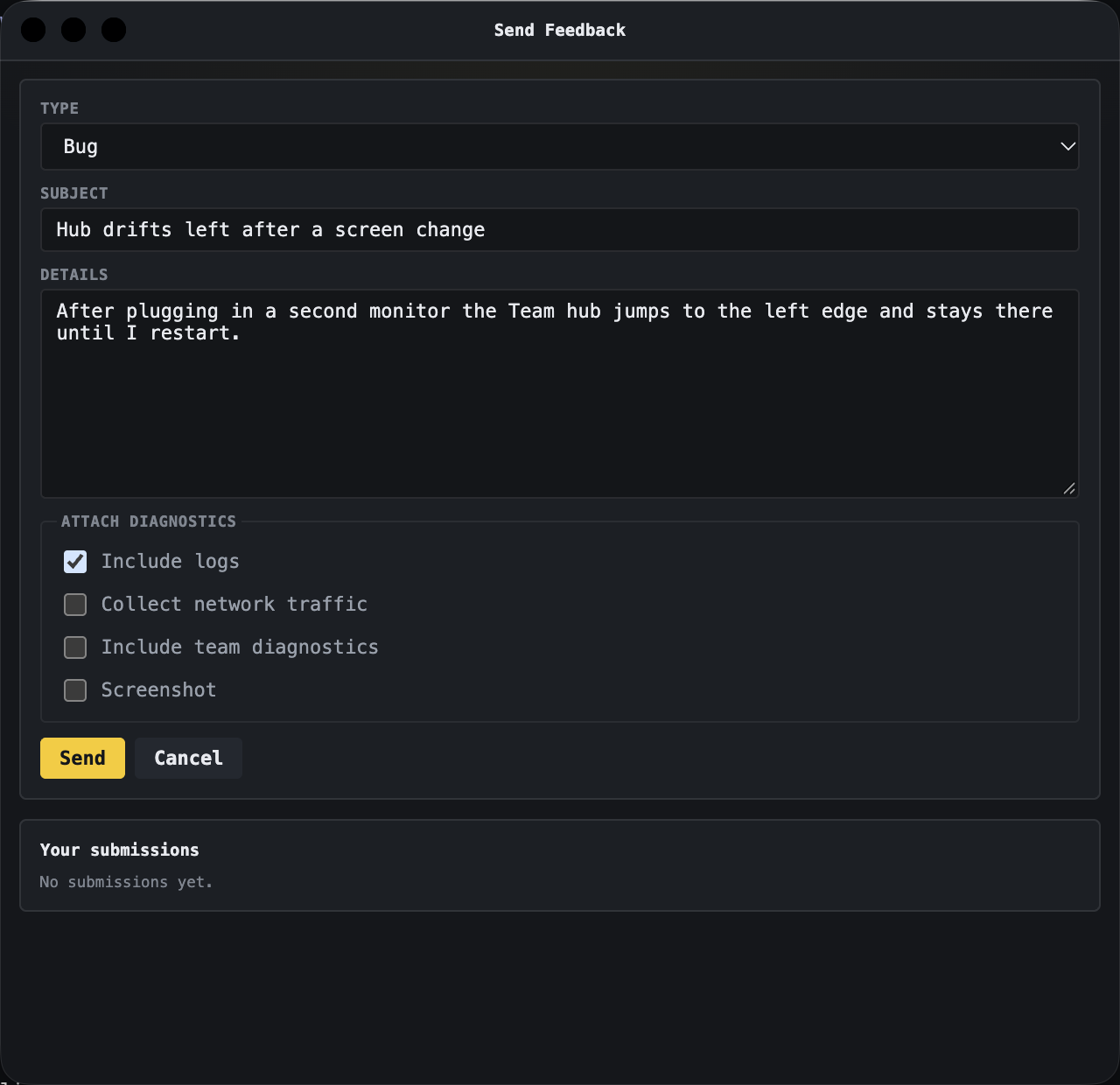
Your earlier submissions are listed in the same window. Open one to edit it, add or replace attachments, or Close issue.