
Manage your team
Change who leads, remove people, and run the team’s channels and recordings. You need to be a Team lead. New here? Start with Lead a team.
Make someone a lead (or a member)
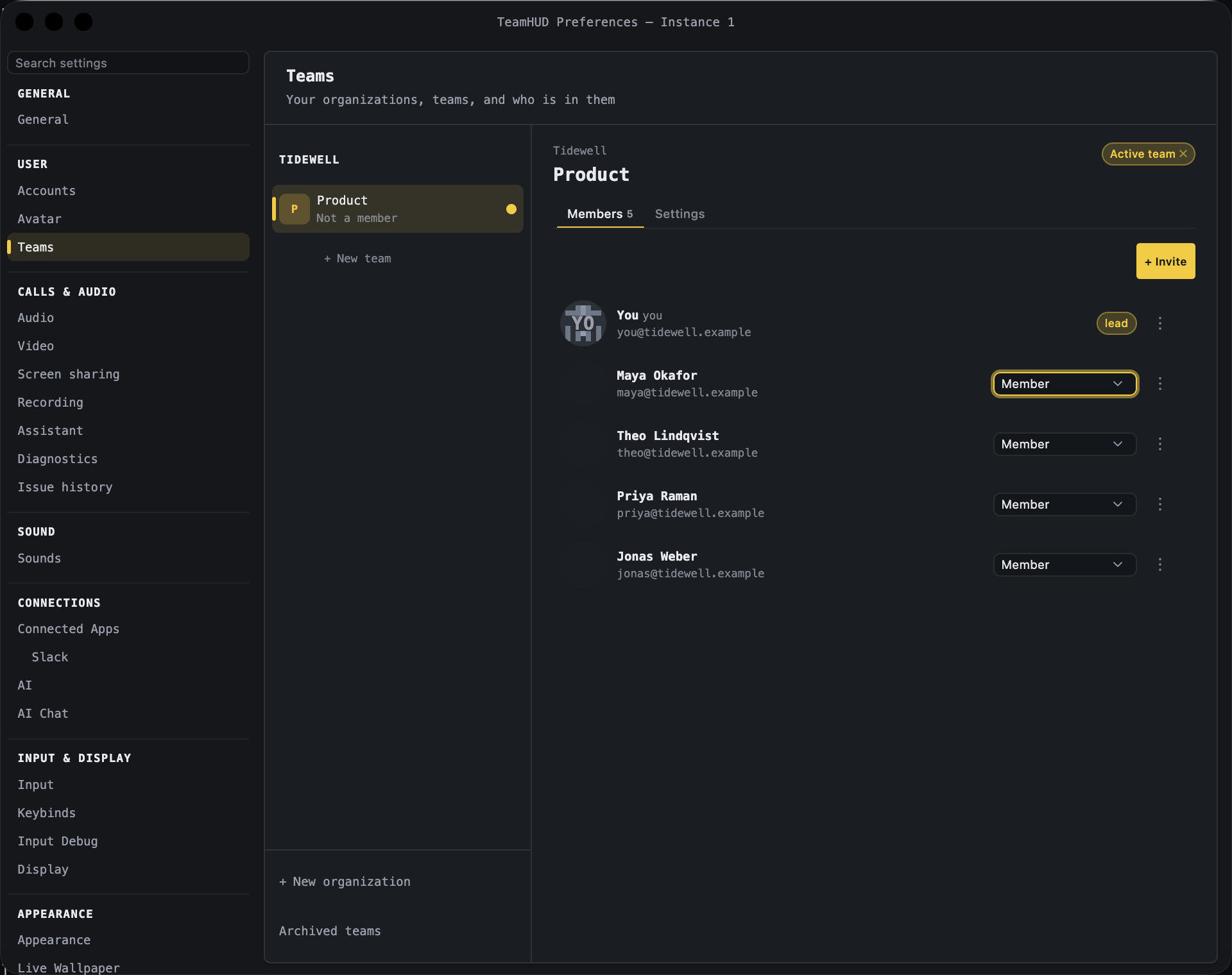
Section titled “Make someone a lead (or a member)”- Open Preferences → Teams, pick the team, and stay on Members.
- Use the role picker on their row: Member or Lead.
The change shows at once. A team needs at least one lead, so the only lead has no picker and cannot leave without another lead (when the only lead leaves, another member is promoted). You cannot change your own role.
Remove someone
Section titled “Remove someone”- On their row, open the
⋮menu and choose Remove from team. - Confirm with Remove.
They lose access to the team and its channels. They stay in the organization and keep their other teams. Taking someone out of the whole organization is an Org owner or Org admin job.
Rename the team
Section titled “Rename the team”On the Settings tab, edit Team name and Description, then save. You see Saved.
Channels
Section titled “Channels”Any member can create a channel. As a lead you can also rename or delete a channel, and add or remove people in it. The server enforces this by role; a member who tries gets a refusal.
Start a recording
Section titled “Start a recording”Recording is off until your organization allows it. Then:
- In a call, open Record this call.
- Tick what to record. Only what the organization allows is offered.
- Click Start.
Everyone in the call sees that it is recorded, and guests are asked to consent. If it says “Recording is turned off for your organization”, an Org owner or Org admin can click Allow recording there, or turn it on in Org policies. Details: Recording and captions.
To record the team’s always-on call automatically, a lead or Org admin ticks parts in Preferences → Recording, on the Team tab, under <team name> team call. Nothing is on until you tick it.
Archive the team
Section titled “Archive the team”Settings → Danger zone → Archive team. The team is hidden from everyone but kept; it ends the team’s call and stops its recordings. Restore it from Archived teams at the bottom of the left rail. Leave team is in the same place.