
Hubs and widgets
A hub is the button a widget puts on your overlay. A widget is the feature behind it. Hover a hub to open its panel.
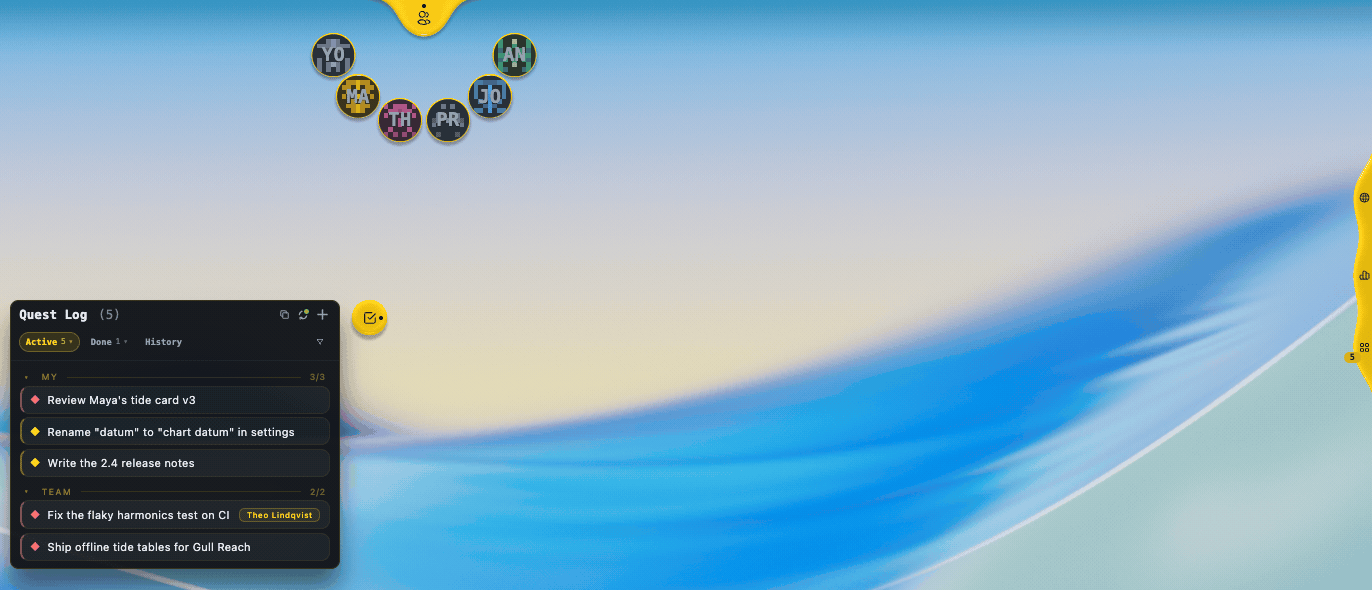
Open a panel
Section titled “Open a panel”Hover a hub and its panel opens. Move away and it closes by itself.
Click a hub to keep its panel open. A hover never replaces a panel you kept open. Click again to release it.
Panels open toward the middle of your screen, so they never run off an edge.
Move a hub
Section titled “Move a hub”Drag a hub anywhere. It can sit on an edge, in a corner or float free. TeamHUD remembers the place.
Right-click a hub
Section titled “Right-click a hub”Right-click a hub for its menu. Every widget has these at the bottom:
- Reset panel size, if you resized the panel.
- Reset all appearance for that hub.
- Edit appearance…, which opens the Appearance settings for it. See Appearance.
- Disable widget, on widgets that can be turned off.
Many widgets add their own items above these.
Which widgets exist
Section titled “Which widgets exist”Team, Messages, Quest Log, Resources, Window Activity (the Window Focus widget), AI Chat, Mini Browser and Folder hubs. Custom widgets you add show up as well. See Custom widgets.
Turn widgets on or off
Section titled “Turn widgets on or off”During setup, the widget step shows one card per widget. Most are on by default (example custom widgets start off); click a card to turn it on or off. You can change this later.
To change it later, open Preferences, Plugins, Manage and use the switch on a widget’s card. Turning a widget off removes it from the overlay right away. See Plugin settings.
Choose the monitor
Section titled “Choose the monitor”TeamHUD runs on one monitor at a time. Pick it under Preferences, Display. Automatic follows your primary display. See Input and display.
Hide the whole overlay
Section titled “Hide the whole overlay”Press the show/hide shortcut to hide the overlay without closing anything. Widgets and calls keep running. See Hotkeys.