
Team chat and DMs
Message your team in the team channel, or write to one person directly, without leaving what you are doing. This page covers sending, attaching, reacting and unread counts.
Before you start: you are signed in and you have an active team. If you are not on a team yet, see Install and sign in.
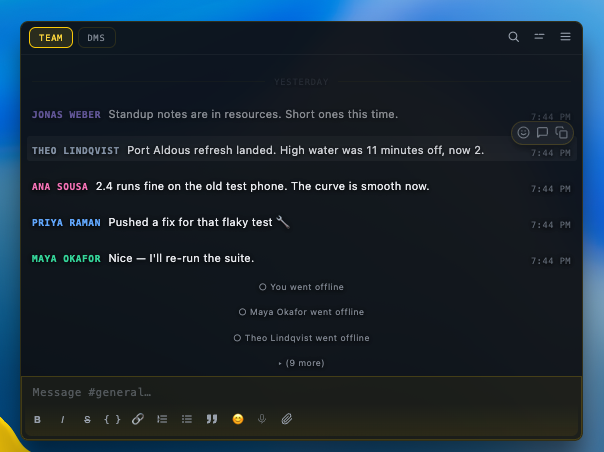
Message the team channel
Section titled “Message the team channel”- Open chat. Hover the Team Chat hub on the overlay. The panel opens on the Team tab.
- Check the channel. The message box says Message # followed by the channel name. To jump to another channel, press CmdShiftKmacOSCtrlShiftKWindows, Linux.
- Write. Type in the message box and press Enter. Your message appears at the bottom.
- Attach a file (optional). Use the paperclip button in the message box, drag a file onto it, or paste an image. Wait until the file chip stops uploading, then send. A file with no text is a message too.
What you’ll see: your message in the list with your name and the time. Teammates see it right away.
Send someone a direct message
Section titled “Send someone a direct message”- Find the person. Hover their avatar on the overlay to open their card, or press CmdShiftDmacOSCtrlShiftDWindows, Linux in the open chat panel and type their name.
- Open the DM. On the card, the message box says Message followed by their name.
- Send. Type and press Enter. Attach files the same way as in the channel.
Every DM you have started is listed on the DMs tab of the Team Chat panel. It shows “No direct messages yet” until you send your first one.
React, reply and edit
Section titled “React, reply and edit”Hover a message to see its buttons.
- Add reaction opens an emoji picker. Click a reaction chip to add or remove yours.
- Reply in thread opens the replies under that message. Type in Reply in thread… and send. Use Back to #… to leave the thread.
- Copy, Edit and Delete work on your own messages. Delete asks you to confirm: delete? then cancel. Edited messages show “(edited)”.
In DMs, reactions and threads show only when the chat service behind that conversation supports them.
Typing indicators are not part of chat yet.
Mention someone
Section titled “Mention someone”TeamHUD chat has no mention picker in the message box yet. Write the person’s name in your message. On a connected Slack workspace, @ mentions work as in Slack, and a message that mentions you is highlighted.
Slash commands
Section titled “Slash commands”Type /help in the message box to list them: /me <action>, /here, /busy, /away [text], /offline, /shrug [text]. The presence ones set your status.
Keep track of what is unread
Section titled “Keep track of what is unread”- Each tab shows a count pill (9+ above nine).
- Inside the list, a New messages line marks where you stopped reading.
- Scrolled up? A ↓ N new messages button, or Jump to latest, takes you to the bottom.
- The unread badge on the Team Chat hub is off by default. Right-click the hub and tick Show unreads to turn it on.
Search and layout
Section titled “Search and layout”- The search button (Search messages) filters the current tab. Close it with the X or
Esc. - Message layout puts the sender’s name on its own line or inline. Row density switches Comfortable and Compact rows. Both are also on the hub’s right-click menu (Name on its own line).
- Right-click a link in a message and choose Pin to Resources. See Resources.
- Right-click the hub and tick Suggest quests from chat (and …also in direct messages) to get quest suggestions. Off until you turn it on. See Quest log.
If your team uses Slack, choose Connect Slack in the panel and approve access in your browser. A Slack tab then appears. You can:
- filter channels with Filter channels;
- reply in threads and add reactions;
- mark a conversation read and open a message with Open in context;
- connect another workspace with Authorize another Slack workspace.
If it goes wrong
Section titled “If it goes wrong”- Message not sent. The composer shows the error. Fix the cause (usually your connection) and send again; your text is kept.
- “Reconnecting…” in a DM. Chat lost its connection. It retries by itself; use the reconnect button if shown.
- Can’t see the Team Chat hub. It may be off. See Hubs and widgets.
Asking an AI instead? See AI chat.