
Account and sign-in
Create an account, get back in when you forget your password, and move between teams without losing your place.
Create an account
Section titled “Create an account”You need the TeamHUD app. If your organization runs its own server, get its address from your Org owner or Org admin first.
- Open TeamHUD. The first time, it opens on Welcome back. Click Create one under the form, next to No account?. The heading becomes Create your account. Enter your email and click Continue.
- Fill in the details. Add a Display name and a Password (at least 8 characters).
- Click Create account.
- Verify your email if asked. See Verify your email.

Sign in
Section titled “Sign in”- Open TeamHUD. It opens on Welcome back, the sign-in form.
- Enter your email and click Continue. TeamHUD finds your server and shows Signing in to the server name.
- Enter your password and click Sign in.
- Prefer a provider? Click Continue with Slack or Continue with Microsoft instead. A consent window opens; approve it and you are in.
Your organization’s server decides which providers appear. If a Slack or Microsoft Teams workspace is the main way in, its button is first and large, with or use email below. Microsoft Teams sign-in is labeled Microsoft on the button.
Running your own server? Open Use a different TeamHUD server, enter the Server address (https, for example https://teamhud.example.com), then sign in.
Forgot your password
Section titled “Forgot your password”- On the sign-in form click Forgot password?. The heading becomes Reset password.
- Enter your email and click Send reset link.
- Open the link in the email you receive and choose a new password.
TeamHUD always answers If that email is registered, a reset link is on its way. Check your inbox. It does this for every address, so it never tells you whether an account exists.
If the server has no email set up, you get This server cannot send email, so a reset link cannot be sent instead. Ask your Org admin (or the System admin who runs the server) to set a new password for you.
If you signed up with Slack or Microsoft, you have no TeamHUD password and no email arrives. Click Back to sign in and use Continue with Slack (or Microsoft) instead. The message adds this hint when your server offers those providers.
Still no email after a few minutes? Check spam, and make sure you typed the address you signed up with. Then ask your Org admin.
Verify your email
Section titled “Verify your email”Accounts created on TeamHUD cloud must prove the address. After you create the account, an email with a link arrives. Open the link to finish.
Until you do, Preferences, then Accounts, shows Verify your email: We sent a link to your address. Open it to finish setting up your account. Your 14-day Pro trial starts when you do. Click Send a new link to get another email.
| Message | What it means |
|---|---|
| Sent. Check your inbox and spam folder. | The email is on its way. |
| Too many emails sent. Try again in an hour. | You asked for too many links. Wait an hour. |
| We couldn’t send the email right now. Try again later. | The server could not send mail. Try again later. |
Self-hosted servers do not show this banner.
Several teams and servers
Section titled “Several teams and servers”Switching to another team’s server does not sign you out. TeamHUD keeps each account signed in and makes one active.
Open Preferences, then Accounts. Each account is a row with the email and server.
- Add account. Opens the sign-in form for another server or account. The current one stays signed in.
- Switch. Makes that account active. TeamHUD closes the old account’s windows and notifications and restarts the overlay for the new one.
- Sign in again. Shown with a Signed out badge when that account’s session ended.
- Edit and Remove. Change the server or credentials of a row, or forget it.
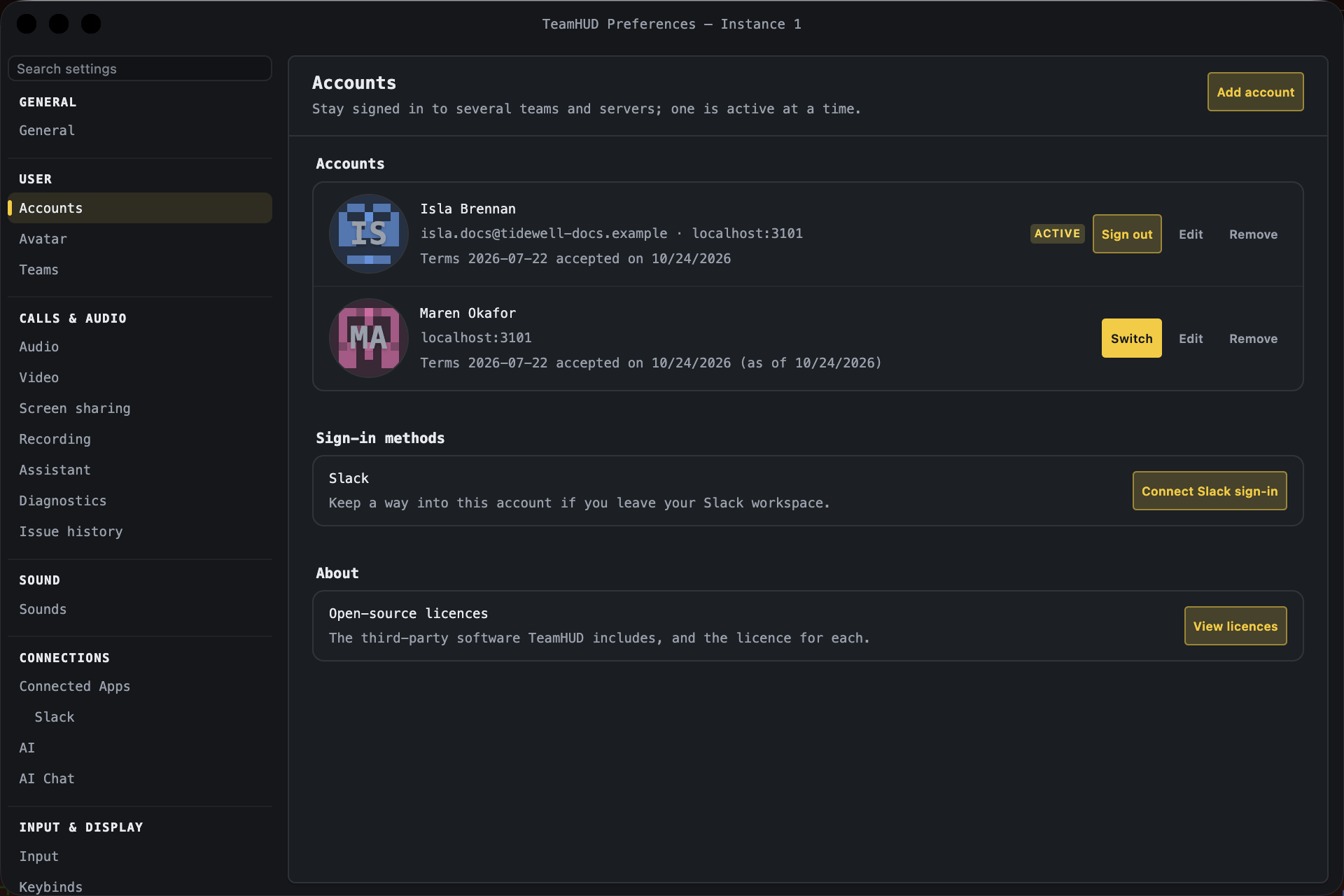
Inside one account, you move between organizations and teams in Preferences, under Teams.
Sign out
Section titled “Sign out”In Preferences, then Accounts, click Sign out on the Active row.
During setup, Sign out & use a different account on the “already signed in” card does the same.
If it goes wrong
Section titled “If it goes wrong”- Session invalid — sign out and sign back in. The server refused your sign-in. Sign out on the Accounts pane, then sign in again.
- Reset not available. or Auth service unavailable. Restart TeamHUD from the tray menu and try again.
- Wrong server. Click Change next to your email, open Use a different TeamHUD server and fix the address.
- Can’t get in at all. See Locked out or access paused and Troubleshooting.
Next: Install and sign in for setup and the overlay.